
 Polski

How to create a USB drive with Windows?
- 28 Apr, 2026
- Lista blogów , Lista blogów , Lista blogów , Lista blogów , Lista blogów
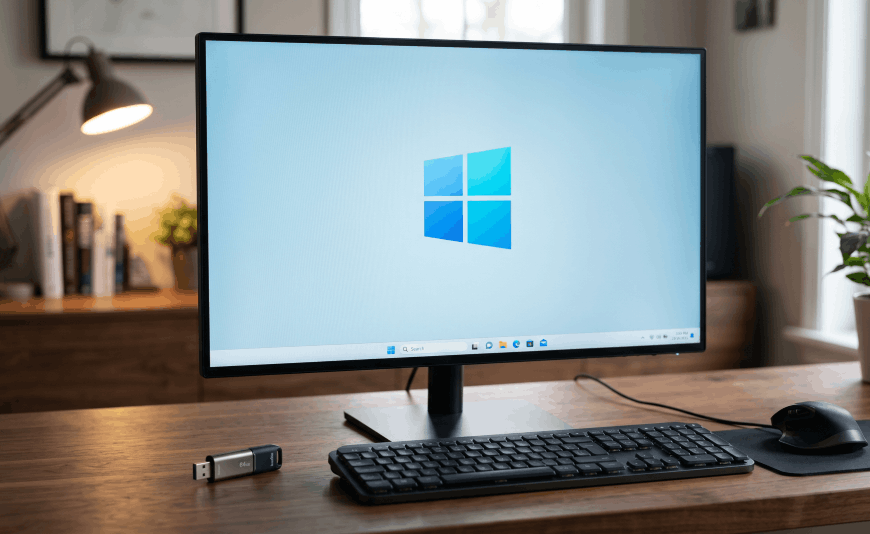
Installing an operating system from a USB drive has become standard. This solution is convenient, fast, and reliable, especially when the computer does not have a DVD drive. A Windows USB drive allows you to install the system practically on any device – from a laptop to a desktop computer.
What do you need to prepare a Windows USB drive?
Before you start, prepare a few basic items. Without them, creating an installation media will not be possible.
- A USB drive with a minimum capacity of 8 GB,
- A stable internet connection,
- A computer with Windows,
- The official Microsoft tool – Media Creation Tool.
It is advisable to make sure that the USB drive is empty. The creation process often erases all data stored on the USB drive.
How to create a Windows USB drive?
The simplest and safest way is to use the tool provided by Microsoft. This ensures the user that the system files are up to date and free of errors.
First, you need to download the Media Creation Tool from the Microsoft website. After launching the program, accept the license terms and select the option "Create installation media for another PC.
In the next step:
- select the system language,
- specify the Windows edition,
- set the architecture (most often 64-bit).
Then select the "USB flash drive" option. The program will automatically detect the connected USB drive and start downloading the system files. The entire process may take several tens of minutes depending on the internet speed.
After the operation is complete, the Windows USB drive is ready to use.
Installing Windows from a USB drive – how to start the installer?
Preparing the USB drive is only the first stage. To start installation on the device, you need to boot the computer properly.
After connecting the USB drive:
- restart the computer,
- enter BIOS or UEFI (usually by pressing F2, DEL, or ESC),
- set booting from the USB drive as the first option.
After saving the changes, the computer will restart and automatically begin the Windows installation from the USB drive. Windows from the USB drive.
Common problems when creating a Windows USB drive
Despite the simplicity of the process, difficulties may occur. It is worth knowing the most common situations and how to resolve them.
Often, the problem stems from an inappropriate USB drive – slow memory can prolong the process or cause errors. It is best to use USB 3.0 models.
Sometimes the computer does not detect the media during startup. In this case, check BIOS settings or use the boot menu.
Some errors occur during file downloads – then it is best to restart the tool and ensure the internet connection is stable.
Why is it worth preparing an installation Windows USB drive?
Having your own installation media provides great independence. In case of system failure, you can quickly restore the computer without needing to visit a service center.
A Windows USB drive is also useful when replacing a disk or upgrading the computer.
This is a practical solution that is worth having always at hand – especially in work environments where time and equipment uptime matter.
The process of creating installation media is not complicated, and proper preparation takes relatively little time. Knowing how to create a Windows USB drive allows you to install the system independently and avoid unnecessary complications. It is one of the fundamental actions that significantly increases control over your own hardware and software.






