
 Polski

Common Windows activation errors and how to fix them
- 15 Jan, 2026
- Lista blogów , Lista blogów
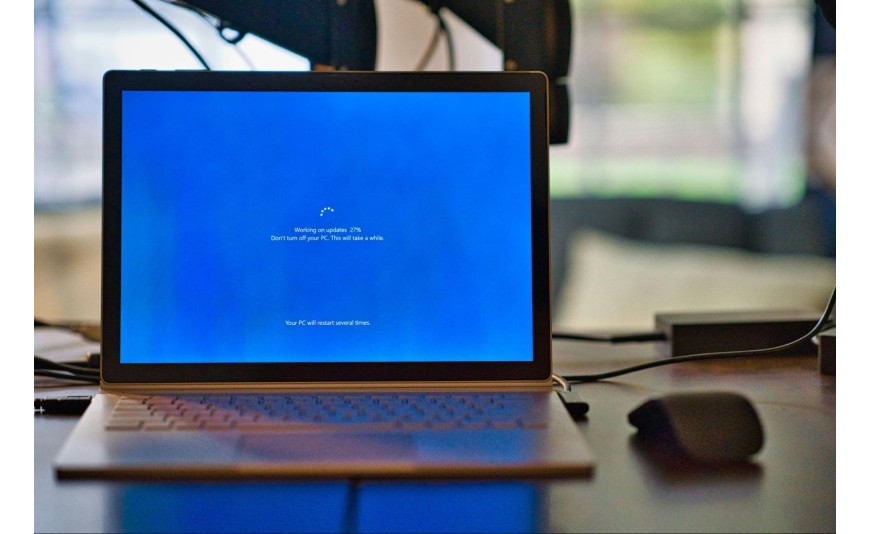
The system installation went smoothly, the computer is running, and you are eagerly waiting for all functions to fully start. You enter the 25-character product code, click “Activate,” and suddenly a message appears: Windows cannot be activated. Instead of enjoying the new system, you stare at a mysterious string of numbers and letters that mean nothing to you. If this situation sounds familiar, you’ve come to the right place. In this guide, we explain the causes of activation problems, how to read Windows activation error codes, and how to effectively restore full system functionality.
Why does the Windows activation error occur?
There are more causes of failed activation than you might think. Sometimes the culprit is an internet connection interruption during license verification on Microsoft’s servers. Other times, the problem lies in the product key itself, which may have a typo or come from an unauthorized source. The system may also refuse to cooperate after significant hardware changes, such as replacing the motherboard or hard drive. It’s worth remembering that a Windows activation error does not always mean your license is invalid – often, a few simple steps are enough to restore everything to normal.
Most common Windows activation error codes
Every failed activation message contains a specific code that indicates the source of the problem. Knowing these codes greatly facilitates diagnosis and allows for quicker implementation of appropriate corrective actions. Below you will find a list of the most common codes along with their meanings.
Code 0xC004F074 – no connection to the activation server
This Windows activation error code appears when the computer cannot connect to Microsoft’s servers. Causes vary: temporary network problems, firewall blocking, or incorrect proxy server settings. First, check your internet connection and ensure the firewall is not blocking the activation process. If you are using a corporate network, contact your IT administrator.
Code 0xC004C008 – product key already in use
This message indicates that the entered key has been activated on another device. For retail licenses, you can transfer activation to a new computer after deactivating the previous one. OEM licenses, however, are permanently tied to a specific motherboard, so transfer is not possible. If you purchased a new key and see this error, contact the seller to clarify the situation.
Code 0x803F7001 – invalid license
This message means the system does not recognize the entered key as valid for the installed edition of Windows. This usually happens when you try to activate a Pro version with a key intended for the Home edition or vice versa. Always verify before purchase that the key matches the installed operating system edition.
Code 0xC004F034 – system version mismatch
Like the previous error, this Windows activation error results from a key not matching the system edition. It may also occur when attempting to activate a volume license with a retail key. Make sure you have the correct license type for your installation.
Windows activation repair – tested methods
Once you identify the source of the problem, it’s time to take action. Below we present effective ways to fix Windows activation that you can perform yourself without advanced technical knowledge.
Method 1: Use the troubleshooter
Windows 10 and Windows 11 have a built-in diagnostic tool that automatically detects and repairs common activation issues. To use it:
open “Settings” (Win + I);
go to the “System” section, then “Activation”;
click “Troubleshoot” and follow the on-screen instructions.
The tool will scan the system, check the connection to Microsoft servers, and attempt automatic repair. In many cases, this simple action is enough to restore activation.
Method 2: Re-enter the product key
Sometimes the problem is solved by re-entering the activation code. Errors during the first entry happen more often than you think – mixing up the digit “0” with the letter “O” or “1” with “I” is common. Go to Settings, select Activation, and click “Change product key.” Enter the code again, paying close attention to each character.
Method 3: Phone activation
If online automatic activation fails, you can use phone activation. Despite the name, it does not require speaking with a consultant – the entire process is automated. Open the command prompt as administrator and enter the command “slui 4.” The system will display a phone number and an installation ID. After connecting to Microsoft’s automated line, enter the given code and receive a key confirming activation.
Method 4: Reset license status
In some situations, resetting the components responsible for activation helps. Launch the command prompt with administrator rights and run the following commands one after another:
slmgr.vbs /upk (removes the current key);
slmgr.vbs /cpky (cleans the key from the registry);
slmgr.vbs /ipk XXXXX-XXXXX-XXXXX-XXXXX-XXXXX (installs a new key);
slmgr.vbs /ato (starts online activation).
After completing these steps, restart your computer and check the activation status.
Hardware change and Windows activation
One of the most frequent causes of losing activation is computer upgrading. Hardware change and Windows activation is a topic that raises many doubts, especially among those planning component replacements. The Microsoft system generates a unique hardware ID based on computer components, with the motherboard being the primary element in this process. Replacing the graphics card or adding RAM usually does not affect activation, but replacing the motherboard almost always results in losing it.
What to do after replacing the motherboard?
If you have a retail license linked to a Microsoft account, you can reactivate the system on new hardware. Before upgrading components, it’s worth linking your license to a Microsoft account in system Settings. This way, after changing the motherboard, simply sign in to the same account and run the activation troubleshooter – the system will automatically recognize your license.
OEM license limitations
OEM licenses, frequently offered at lower prices, have significant limitations: they are permanently tied to the first device on which they were activated. After replacing the motherboard, such a license stops working, and purchasing a new key is necessary. Therefore, when choosing a license, consider whether you plan to upgrade your computer in the future.
How to avoid activation problems?
Prevention is easier than repairing Windows activation afterward. A few simple rules will help you avoid frustration related to error messages:
only buy keys from authorized sources guaranteeing product legality;
before purchase, check if the key matches your system version (Home, Pro, Enterprise);
link your digital license to your Microsoft account immediately after activation;
keep your purchase proof and product key in a safe place;
verify your license type before upgrading hardware.
In the store Key-soft.pl you will find cheap Windows keys in various variants – both with online activation and device-assigned. Every product comes from authorized distribution, and the order includes step-by-step activation instructions.
FAQ: Windows activation, checking license status, and transferring the system to a new computer
Can I use Windows without activation?
Yes, the system works without activation but with some limitations. You cannot personalize the desktop, and a watermark appears in the corner reminding you to activate. Additionally, some security features may be restricted.
How do I check if my Windows is activated?
Open “Settings” (Win+I), go to the “System” section, then select “Activation.” There you will see information about activation status and the type of Windows license you have.
Does changing the SSD affect Windows activation?
Replacing the hard drive or SSD usually does not cause activation loss, provided that other components, especially the motherboard, remain unchanged. After moving the system to a new drive, activation should remain valid.
Can I transfer a Windows license to another computer?
It depends on the license type. Retail licenses can be transferred between devices after deactivating the previous hardware. OEM licenses are tied to a specific computer and generally cannot be transferred.






