Jak naprawić błąd 0x80072F8F - 0x20000 w Media Creation Tool na Windows 7, 8.1, 10 i 11
- 13 Gru, 2025
- Lista blogów
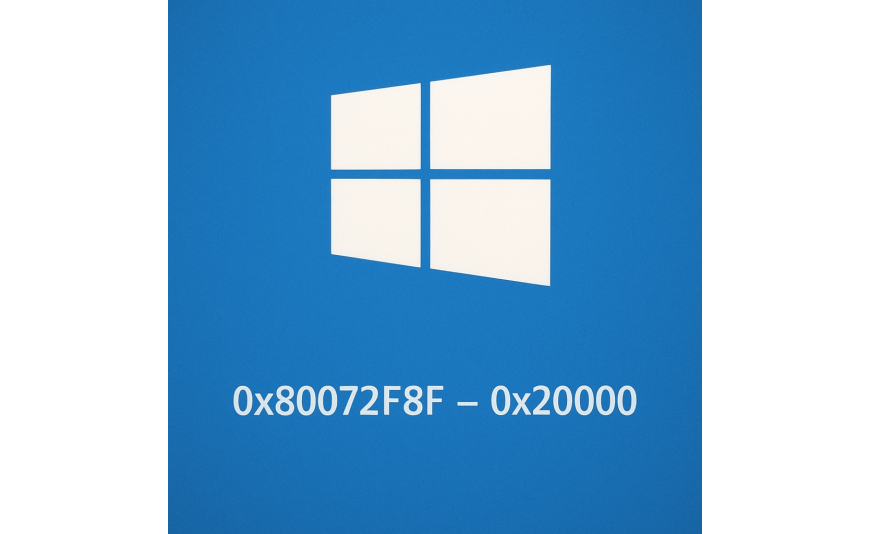
Jak naprawić błąd 0x80072F8F - 0x20000 w Media Creation Tool – Kompleksowy poradnik dla Windows 7, 8.1, 10 i 11
Wprowadzenie
Błąd o kodzie 0x80072F8F - 0x20000 pojawiający się podczas korzystania z narzędzia Media Creation Tool może być frustrujący – zwłaszcza gdy planujemy aktualizację lub reinstalację systemu Windows. Problem ten najczęściej występuje na systemach starszych niż Windows 8.1, np. Windows 7 lub 8.0, ale nie tylko. Na szczęście istnieje wiele skutecznych metod, które pozwalają obejść ten problem i kontynuować proces instalacji lub tworzenia nośnika instalacyjnego.
W tym artykule przedstawiamy sprawdzone, profesjonalne sposoby rozwiązania błędu, niezależnie od wersji systemu Windows: Home, Pro, Education czy Enterprise – zarówno dla systemów 7, 8.1, 10, jak i 11.
Czym jest błąd 0x80072F8F - 0x20000?
Ten błąd wskazuje na problem z komunikacją między komputerem a serwerami Microsoft. Przyczyną mogą być nieprawidłowe ustawienia daty i godziny, problemy z certyfikatami SSL, zablokowane połączenia HTTPS lub brak niezbędnych aktualizacji systemowych. W systemach starszych niż Windows 8.1 wsparcie dla nowoczesnych protokołów TLS może być wyłączone lub nieaktualne.
Sprawdzone sposoby naprawy błędu 0x80072F8F - 0x20000
1. Użyj nowszego systemu lub alternatywnej metody tworzenia instalatora (ZALECANE)
Microsoft oficjalnie wspiera Media Creation Tool tylko na systemach Windows 8.1 i nowszych. Jeśli używasz Windows 7, najprostszym rozwiązaniem może być:
Skorzystanie z innego komputera z Windows 10 lub 11.
Pobraniem narzędzia Rufus lub UltraISO i ręcznym przygotowaniem bootowalnego pendrive’a z systemem w wersji ISO pobranym ze strony Microsoft.
Jak to zrobić z UltraISO:
Pobierz plik ISO Windows 10 lub 11 z oficjalnej strony Microsoft.
Pobierz program UltraISO
Włóż pendrive (min. 8 GB), uruchom program.
Wybierz pobrany plik ISO i stwórz bootowalny pendrive.
Na youtube są dostępne filmy z tworzenia nośnika na UltraISO.
2. Zmień datę i godzinę systemową
Narzędzie Media Creation Tool wymaga poprawnie ustawionego zegara.
Jak to zrobić:
Kliknij prawym przyciskiem myszy zegar w prawym dolnym rogu ekranu.
Wybierz „Dostosuj datę i godzinę”.
Włącz opcję „Ustaw czas automatycznie” oraz „Ustaw strefę czasową automatycznie”.
Jeśli opcja automatyczna nie działa, ustaw datę i godzinę ręcznie.
3. Zainstaluj najnowsze aktualizacje systemu
W systemach Windows 7 i 8.1 brak aktualizacji zabezpieczeń (np. obsługi protokołu TLS 1.2) może uniemożliwiać połączenie z serwerami Microsoft.
Dla Windows 7:
Zainstaluj Service Pack 1 (jeśli jeszcze tego nie zrobiłeś).
Pobierz i zainstaluj aktualizację KB3140245 – umożliwia obsługę TLS 1.2.
Zainstaluj aktualizację certyfikatów głównych z witryny Microsoft Update Catalog.
Dla Windows 8.1:
Upewnij się, że zainstalowane są wszystkie aktualizacje z Windows Update.
Jeśli aktualizacje nie działają, pobierz narzędzie WSUS Offline Update i zaktualizuj system offline.
4. Włącz protokoły TLS 1.1 i 1.2
Starsze systemy mogą mieć domyślnie wyłączoną obsługę nowoczesnych protokołów bezpieczeństwa.
Jak włączyć TLS 1.1 i TLS 1.2 w rejestrze Windows:
Otwórz Edytor Rejestru (Win + R →
regedit).Przejdź do:
HKEY_LOCAL_MACHINE\SYSTEM\CurrentControlSet\Control\SecurityProviders\SCHANNEL\ProtocolsJeśli nie istnieje folder
TLS 1.1iTLS 1.2, utwórz go.W każdym z nich utwórz podfolder
Clienti dodaj nową wartość DWORD:Nazwa:
EnabledWartość:
1
Uruchom ponownie komputer.
Podsumowanie
Błąd 0x80072F8F - 0x20000 w narzędziu Media Creation Tool może wydawać się trudny do rozwiązania, ale stosując się do powyższych kroków, możliwe jest skuteczne jego ominięcie – zarówno w systemie Windows 7, 8.1, jak i nowszych głównym rozwiązaniem jest użycie wersji ISO oraz programu np. UltraISO. Najważniejsze to zadbać o zgodność z aktualnymi standardami bezpieczeństwa (TLS), zapewnić aktualność systemu oraz odpowiednie ustawienia daty, godziny.