Polski

Optimization of Windows for gaming – how do system settings affect FPS?
- 12 May, 2026
- Lista blogów
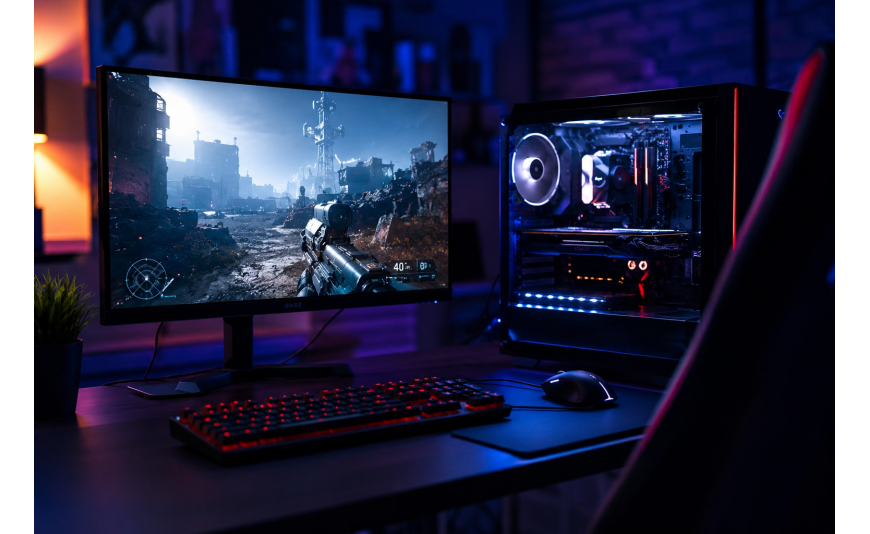
Masz już solidną kartę graficzną i procesor z zapasem mocy, a gra nadal nie chce się rozpędzić powyżej kilkudziesięciu klatek? Zanim zaczniesz szukać problemu w sprzęcie, zajrzyj do systemu operacyjnego. Windows 10 i Windows 11 mają wbudowane mechanizmy, które przy domyślnych ustawieniach potrafią znacząco ograniczać wydajność.
Windows 10/11 jako platforma gamingowa – co Microsoft poprawił dla graczy?
Windows 10 wprowadził Game Mode oraz pierwsze implementacje HAGS (Hardware-Accelerated GPU Scheduling), a Windows 11 poszedł dalej – dodał obsługę DirectStorage i Auto HDR oraz poprawił algorytmy planowania zadań pod kątem układów wielordzeniowych. Na nowym sprzęcie Windows 11 daje nieco lepsze wyniki, ale na starszych maszynach jego wyższe wymagania mogą przynosić odwrotny efekt. Ważniejsze od wersji systemu jest to, jak jest on skonfigurowany.
Tryb Gry (Game Mode) – mit czy realna pomoc w stabilizacji klatek?
Game Mode przekierowuje zasoby procesora i pamięci RAM w stronę uruchomionej gry, ograniczając aktywność procesów działających w tle. Na systemach z ograniczonymi zasobami – 8 GB RAM, procesor czterordzeniowy – potrafi realnie ustabilizować liczbę klatek i zredukować ich wahania. Na mocnych zestawach różnica bywa niezauważalna, a w niektórych konfiguracjach funkcja ta może wręcz powodować mikroskopijne opóźnienia. Krótko mówiąc: Game Mode nie działa tak samo na słabym i mocnym sprzęcie. Warto przetestować go w praktyce. Z tego powodu należy włączyć tryb benchmark.
Planowanie przyspieszanego sprzętowo GPU – ukryta funkcja, którą warto znać
HAGS pozwala karcie graficznej samodzielnie zarządzać własną pamięcią VRAM zamiast przekazywać tę odpowiedzialność procesorowi. Funkcja wymaga odpowiedniego sterownika oraz GPU obsługującego ten standard – NVIDIA od serii GTX 10 wzwyż lub AMD od architektury RDNA. Aktywujesz ją w „Ustawienia” → „System” → „Ekran” → „Grafika” → „Domyślne ustawienia grafiki”. Po włączeniu uruchom komputer ponownie.
Wyłączamy przeszkadzajki – powiadomienia, Asystent Skupienia i aktualizacje w tle
Powiadomienia, synchronizacja OneDrive, aktualizacje pobierające się w tle – każdy z tych procesów odbiera zasoby systemowe podczas gry. Asystent Skupienia (w Windows 11: Nie przeszkadzać”) można skonfigurować tak, żeby włączał się automatycznie po uruchomieniu pełnoekranowej aplikacji: „Ustawienia” → „System” → „Asystent Skupienia” → „tryb automatyczny”. Aktualizacje Windowsa warto odroczyć i zaplanować na godziny nocne – w wersjach Pro znajdziesz tę możliwość w Ustawienia → Windows Update → Opcje zaawansowane. Spośród usług systemowych bezpiecznie można wyłączyć między innymi Tablet PC Input Service, Print Spooler i Remote Registry.
Zasilanie na „Wysoką Wydajność” – dlaczego domyślne ustawienia dławią Twój sprzęt
Domyślny plan zasilania obniża częstotliwość taktowania procesora, gdy system uzna, że pełna moc nie jest potrzebna. W grach procesor wielokrotnie na sekundę musi gwałtownie zwiększyć taktowanie, a opóźnienie w tej reakcji przekłada się bezpośrednio na input lag i wahania klatek. Przestawienie planu na „Wysoką Wydajność” eliminuje ten problem. Na laptopach warto stosować ten tryb wyłącznie podczas podłączenia do zasilania. W Windows 11 plan bywa ukryty – odblokowujesz go przez „Panel Sterowania” → „Opcje zasilania” → „Pokaż dodatkowe plany”.
DirectStorage i Auto HDR – technologie, dla których warto mieć Windows 11
DirectStorage pozwala karcie graficznej pobierać dane bezpośrednio z dysku NVMe z pominięciem procesora, co skraca czasy ładowania poziomów. Auto HDR automatycznie rozszerza paletę kolorów w grach nieprojektowanych natywnie pod ten standard – starsze tytuły zyskują dzięki temu głębię kolorystyczną, której pierwotnie nie miały. Obydwie technologie są niedostępne w Windows 10, co stanowi twardą różnicę między wersjami systemu. Jeśli Twój komputer spełnia wymagania Windows 11 i masz dysk NVMe, przejście na nową wersję ma w kontekście gamingu realne uzasadnienie.
Czysty system to więcej FPS – wpływ bloatware'u na wydajność w grach
Na fabrycznie nowych laptopach producenci często instalują dziesiątki aplikacji uruchamiających się razem z systemem. Każda zajmuje RAM i obciąża procesor, nie oferując nic w zamian. Na starszych maszynach efekty ich usunięcia bywają zaskakujące – kilkanaście dodatkowych FPS-ów tylko dlatego, że procesor przestał obsługiwać zbędne procesy. Sprawdź, co startuje razem z systemem, w Menedżerze Zadań (Ctrl + Shift + Esc) → zakładka „Autostart”, a zbędne aplikacje odinstaluj przez „Ustawienia” → „Aplikacje” → „Zainstalowane aplikacje”.
Dlaczego legalny system jest niezbędny dla gracza
Piracki Windows jest realnym zagrożeniem dla gracza. Cracki używane do aktywacji nielegalnych kopii systemu bardzo często zawierają wirusy, które kradną dane logowania – do Steam, Epic Games, przeglądarki czy konta bankowego. Nieaktywowany system ma też ograniczony dostęp do aktualizacji, przez co nowe funkcje, takie jak DirectStorage czy Auto HDR, mogą po prostu nie działać.
Oryginalny klucz Windows 10 lub Windows 11 kupisz w Key-Soft.pl – w wersjach Home i Professional. Kod aktywacyjny trafia na e-mail kilka minut po zakupie, a w załączniku znajdziesz instrukcję instalacji krok po kroku.