Polski

Windows 10/11 Home or Pro? When is it worth paying extra for the professional version?
- 09 Sep, 2025
- Lista blogów
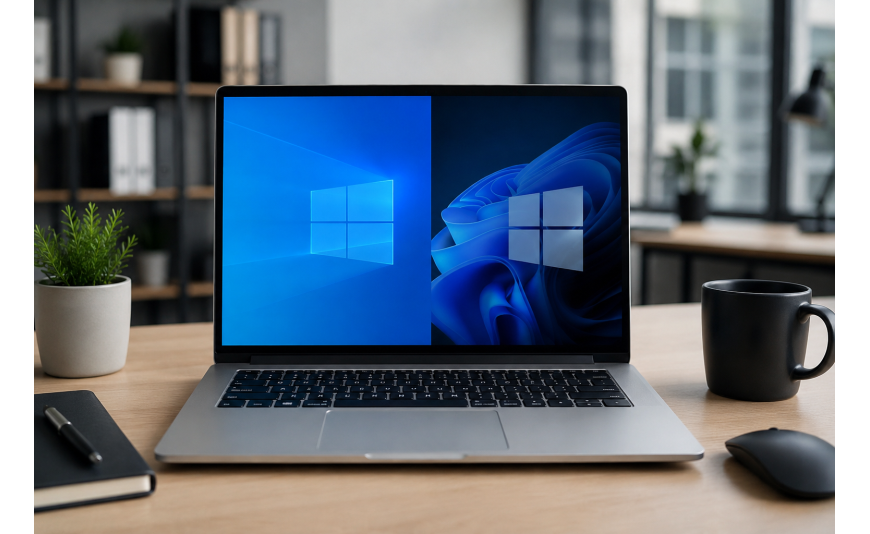
When choosing an operating system, most users wonder whether the cheaper Home version is really enough or if it’s worth paying extra for the Pro version. It all depends on what you use your computer for. The Pro version costs a bit more but offers much more features – and for many people, that difference really matters.
Home vs. Pro – it’s not just a matter of price, but the security of your data
The Home version covers the needs of the vast majority of private users. It supports office applications, multimedia, games, internet browsing, and everyday computer work. However, it lacks tools that are important in the context of data protection, remote work, or managing a corporate environment.
Pro offers everything that Home does, plus BitLocker disk encryption, Remote Desktop, Hyper-V, Windows Sandbox, support for company domains, and advanced group policy management (Group Policy). If none of these terms mean anything to you and you work only at home on a single computer – the Home version is sufficient.
BitLocker – disk encryption and corporate data security (GDPR)
Imagine a company laptop gets stolen. The thief has physical access to the disk – they can remove it and read data on another device, bypassing the Windows password. In the Home version, you don’t have a standard tool to prevent this. In the Pro version, there is BitLocker.
BitLocker encrypts the entire disk so that without a password the data is unreadable – even if someone removes the disk and connects it to another computer. If you store client data, contracts, invoices, or other personal data on your laptop, disk encryption is a requirement under the GDPR. Failure to implement proper security measures may result in financial penalties.
Remote Desktop (RDP) – working from home without external applications
Remote work has popularized the use of remote access tools. In the Home version, you can connect to another computer using Remote Desktop, but you cannot share your own desktop with other devices – this feature is reserved for the Pro version.
What does this mean in practice? If you want to connect to your work computer while away from the office – without installing additional external applications – you need the Pro version on the computer you connect to. RDP works on local networks and over the internet, is stable, and does not require any extra subscriptions. For freelancers and hybrid workers, it’s a convenient tool that removes dependence on third-party apps. For small businesses with a few workstations – it’s essential.
Hyper-V and Windows Sandbox – safely testing programs
If you test software or open files from unknown sources, the Pro version provides two useful tools.
Windows Sandbox is an isolated environment that you launch with one click. Everything you install or run inside it disappears after closing – the main system remains unaffected. Hyper-V allows you to run separate operating systems within Windows – without the need to buy additional hardware.
Update management and domain – when your business needs it
Small businesses with a few computers often do not feel the need for centralized system management—until they encounter problems with unpatched machines or inconsistent security settings. The Pro version allows you to join a computer to an Active Directory or Azure AD domain, enabling management of multiple machines from a single place.
Group Policy is a tool that allows an IT administrator to set rules for all computers on the network: block USB ports, enforce updates, manage user permissions. This function is not available in the Home version.
Does the Pro version slow down the computer compared to Home?
This question comes up often, and the answer is simple: in daily use, the performance difference between Home and Pro is negligible. Both versions use the same system kernel, and Pro’s additional features do not run in the background if you don’t activate them.
BitLocker, once enabled, works in the background with minimal performance impact – on modern SSDs with hardware acceleration, it is practically unnoticeable. Hyper-V and Sandbox start on demand and do not burden the system when inactive. There is therefore no justified reason to fear that Pro will run slower than Home on the same hardware.
Can you upgrade Home to Pro without reinstalling the system?
Yes – and this is one of the reasons not to postpone this decision indefinitely. Upgrading from Windows 10 Home to Pro or Windows 11 Home to Pro does not require system reinstallation or loss of data.
Just go to Settings, open the Activation section, and click “Go to Microsoft Store” or “Change product key.” After entering the purchased Pro key, the system will upgrade automatically – it takes a few minutes, and all apps, files, and settings remain intact. You can buy a Windows 10 Pro or Windows 11 Pro key at Key-Soft.pl. Each order includes a step-by-step activation guide, so you can complete the process yourself without advanced technical knowledge.
Home version is for you!
The Home version is perfectly sufficient if you use your computer exclusively for private purposes – internet browsing, multimedia, games, and everyday communication – and you do not store any professional or sensitive data on the disk. If, in addition, you do not work remotely, do not need access to your computer from outside your home, do not test software, and your computer is not part of any corporate network, the Home edition will meet all your needs without extra cost.
Also consider the Pro version
The Pro version makes sense when you use your computer for work – especially if you store client data, invoices, or GDPR-covered documents, regularly take your laptop outside the home, need remote access to your office computer, or test software in an isolated environment.