Polski

Second life for a laptop – how Windows 10/11 optimization can speed up your old device?
- 23 Apr, 2026
- Lista blogów
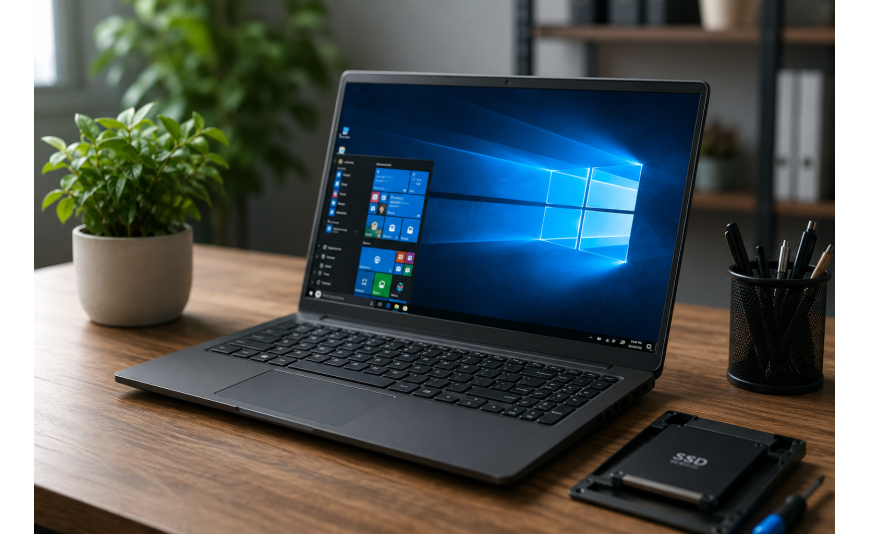
Zazwyczaj kilkuletni laptop, który kiedyś uruchamiał się w trzydzieści sekund, dziś potrzebuje na to kilku minut. Programy otwierają się z opóźnieniem, przeglądarka zawiesza się przy większej liczbie kart, a praca przy komputerze zamienia się w ćwiczenie cierpliwości. Zanim jednak zdecydujesz się na zakup nowego sprzętu, warto sprawdzić, czy problem nie leży po stronie systemu operacyjnego. W wielu przypadkach optymalizacja Windows 10 lub Windows 11 potrafi tchnąć w stary komputer nowe życie.
Dlaczego komputer z czasem zaczyna wolniej działać?
Według wielu osób komputer jest po prostu za słaby, żeby sprawnie działać. Tymczasem ani procesor, ani pamięć RAM rzadko są pierwszymi winowajcami. Przez lata użytkowania system gromadzi dziesiątki aplikacji startowych, których instalator dodał do autostartu bez pytania. Usługi działające w tle pochłaniają pamięć operacyjną, zanim jeszcze zdążysz otworzyć przeglądarkę. Do tego dochodzą fragmentacja danych na starych dyskach HDD, przestarzałe sterowniki oraz zaśmiecony rejestr systemowy.
Zarządzanie autostartem – wyłączamy aplikacje, które „kradną” zasoby przy starcie
Jednym z najszybszych sposobów na poprawę czasu uruchamiania komputera jest przejrzenie listy programów startowych. W Windows 10 i Windows 11 zrobisz to bezpośrednio z poziomu Menedżera zadań: zakładka „Uruchamianie” pokazuje wszystkie aplikacje włączające się razem z systemem, wraz z oceną ich wpływu na czas startu.
Wśród typowych kandydatów do wyłączenia znajdziesz komunikatory, programy do aktualizacji sterowników, asystentów chmury czy aplikacje producentów laptopów, z których na co dzień w ogóle nie korzystasz. Wyłączenie pozycji z tej listy nie usuwa programu – sprawia jedynie, że nie uruchamia się automatycznie. Możesz go uruchomić ręcznie wtedy, kiedy faktycznie go potrzebujesz.
Przy tej czynności warto zachować zdrowy rozsądek. Nie wyłączaj pozycji, których nie rozpoznajesz i których nie możesz zidentyfikować po wyszukaniu nazwy w internecie. Niektóre wpisy, nawet o enigmatycznych nazwach, odpowiadają za prawidłowe działanie sterowników karty graficznej, audio lub sieci bezprzewodowej.
Oczyszczanie dysku i usuwanie zbędnych plików tymczasowych narzędziami systemowymi
Po każdej większej aktualizacji systemu Windows zostawia na dysku ślad. Nadal znajdują się tam pliki poprzednich instalacji, kopie zapasowe komponentów, dane diagnostyczne. Wszystko to potrafi zajmować od kilku do nawet kilkunastu gigabajtów. Na starszych dyskach o niedużej pojemności taki stan rzeczy mocno spowalnia pracę, ponieważ system zaczyna pracować na niemal pełnym nośniku.
Narzędzie „Oczyszczanie dysku” (dostępne po wyszukaniu w menu Start) pozwala jednym kliknięciem usunąć pliki tymczasowe, zawartość „Kosza”, miniatury i dane z poprzednich instalacji systemu Windows. Pliki poprzednich instalacji systemu Windows zajmują zazwyczaj najwięcej miejsca i można je bezpiecznie usunąć, o ile system działa poprawnie przez kilka dni po aktualizacji.
Efekty wizualne vs wydajność – co wyłączyć w starszych maszynach?
Windows 11 wygląda atrakcyjnie, ale część jego wizualnych elementów bywa kosztowna dla starszego sprzętu. Animacje otwierania okien, efekty przezroczystości, cienie pod ikonami – każdy z tych elementów wymaga zasobów procesora i karty graficznej. Na komputerze z nowoczesnym procesorem są niezauważalne, na kilkuletnim laptopie z kartą zintegrowaną mogą wyraźnie obniżać płynność pracy.
W obu systemach możesz dostosować te parametry, wyszukując „Dostosuj wygląd i wydajność systemu Windows” w menu Start. Opcja „Dostosuj tak, aby uzyskać najlepszą wydajność” wyłącza wszystkie animacje jednocześnie – efekt wizualny staje się bardziej surowy, ale komputer zaczyna reagować wyraźnie sprawniej.
Jeśli nie chcesz całkowicie rezygnować z ładnego wyglądu, możesz wybrać podejście pośrednie i odznaczyć tylko te efekty, które najbardziej obciążają system: animacje przy minimalizowaniu i maksymalizowaniu okien, animacje na paskach zadań i przezroczystość.
Aktualizacje i sterowniki – paradoksalnie, nowe sterowniki mogą przyspieszyć stary sprzęt
Stary sprzęt kojarzony jest z przestarzałymi sterownikami, ale nie zawsze jest to stan konieczny ani pożądany. Producenci kart graficznych – AMD i NVIDIA – regularnie wydają aktualizacje poprawiające wydajność i stabilność, także w zastosowaniach ogólnych. Sterownik karty graficznej sprzed trzech lat może działać gorzej niż jego aktualna wersja, nawet jeśli nie grasz w gry.
Podobnie wygląda sytuacja ze sterownikami chipsetu płyty głównej, kontrolera USB czy sieci bezprzewodowej. Aktualne wersje lepiej komunikują się z nowszymi wersjami systemu, co przekłada się na stabilniejsze działanie i mniejsze użycie zasobów przez procesy systemowe.
Czysta instalacja Windows („Fresh Start”) – dlaczego to działa najlepiej?
Jeśli wszystkie powyższe działania przyniosły tylko częściową poprawę, a komputer nadal działa poniżej oczekiwań, warto rozważyć czystą instalację systemu. To jest skuteczniejsze niż jakiekolwiek optymalizacje na działającym systemie, ponieważ eliminuje wszystko, co narosło przez lata: pozostałości po odinstalowanych programach, wpisy w rejestrze, pliki tymczasowe z różnych wersji aktualizacji i niepotrzebne usługi.
Czysta instalacja Windowsa polega na sformatowaniu partycji systemowej i zainstalowaniu systemu od zera. Po zakończeniu procesu masz świeży, nieprzeciążony system, który startuje szybko i działa tak, jak powinien. Efekt jest tym bardziej odczuwalny, im bardziej obciążony był poprzedni stan systemu.
Kiedy optymalizacja nie pomoże? Sygnały, że czas na wymianę dysku na SSD
Istnieje jeden scenariusz, w którym żadna optymalizacja oprogramowania nie przyniesie oczekiwanych efektów: stary dysk twardy HDD jako nośnik systemowy. Mechaniczne dyski twarde mają ograniczoną przepustowość i bardzo wysokie czasy dostępu do danych w porównaniu z dyskami SSD. Nawet świeżo zainstalowany Windows na dysku HDD działa wyraźnie wolniej niż system na najtańszym dysku SSD.