
 Polski

Guide: How to create a disk partition in Windows 11?
- 24 Jul, 2023
- Lista blogów
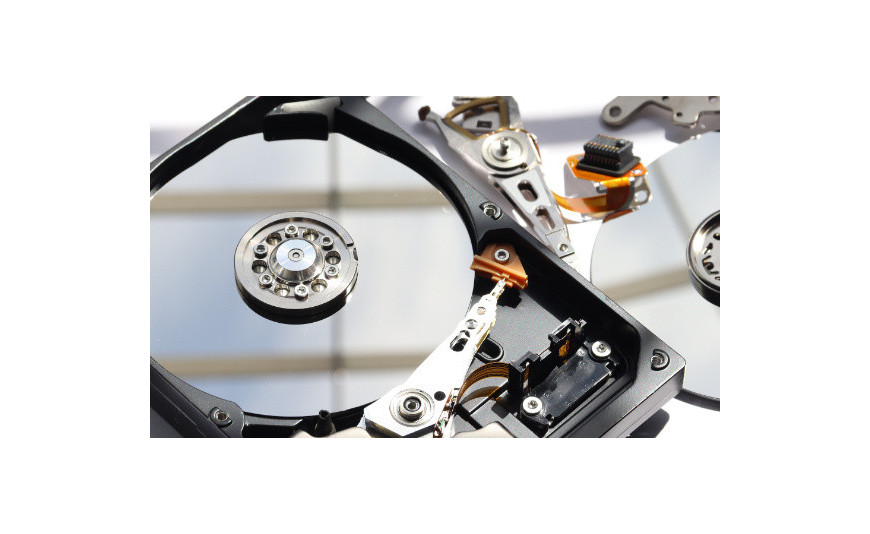
Having trouble finding the needed files on your computer’s hard drive? Or maybe the device is running slower? If you have a unit with Windows 11, partitioning the disk is the perfect solution for you. This way, you will create additional drives that will help organize your files. This will positively affect the computer’s performance. Learn how to partition a disk in Windows 11.
Partitioning a disk in Windows 11 – how does it work?
Partitions are also called volumes. These are virtual sections into which a hard drive can be divided. As a result, instead of one C: drive, the computer may have other sections such as D: and even E:. However, it is important to remember that creating partitions does not increase memory – the entire disk still has the same capacity.
After creating volumes on the hard drive, additional drives will appear in the "This PC" folder. They are easy to find. You can move various programs, documents, and other files to them.
How to partition a disk in Win 11?
Wondering, how to create partitions? The whole procedure is quite simple. You don’t need to install anything. You just need a little time.
- Hover over the Windows icon and right-click.
- Select "Disk Management.
- Right-click on the disk from which a partition will be created.
- When the menu appears, find "Shrink Volume" and click it.
- Enter the size of the new partition – remember, you specify its size in MB.
- Click the "Next" button.
- Find unallocated disk space on the list of volumes.
- Click the field marked "Unallocated" and press the "New Simple Volume" button.
- In the new window, press "Next.
- Next to "Simple volume size in MB," enter the desired size for the new partition. Click "Next.
- In the first step, assign a letter to the new drive.
- In the "Format this volume with the following settings" section, change the file system to "NTFS." Click "Next.
- A summary with basic information about the partition will appear on the desktop. Click "Finish" to complete the volume creation.
After completing the above tutorial steps how to create partitions you will be able to start using the disk for data storage.
How to merge partitions in Windows 11?
Have you created too many new partitions? Wondering how to make disk management Windows 11? You can merge them into one volume. It’s quite simple!
- Hover over the Windows icon, then right-click.
- Press the "Disk Management" button.
- Select one partition and right-click it.
- Press the "Delete Volume" button.
- Assign the obtained disk space to the selected partition.
- Hover over the volume you want to extend and right-click.
- Click "Extend Volume.
- Specify the size for the new partition and click "Next" and "Finish.
This way, you will eliminate several volumes and get one large one. However, remember to first empty each disk of stored files before deleting it. If you don’t do this, deleting the partition will erase all data.
WINDOWS 11 HOME OEM 32 bit 64 bit – modern operating system for home use
Why is it worth creating a disk partition?
Partitioning a hard drive is a great idea if you want to better protect your files. If the operating system is unexpectedly damaged, the technician will format only the volume where Windows is installed. This will remove all data from it and restore the device to full functionality. However, files stored on the other drives will remain. Therefore, you will still be able to access them. This is especially important if, for example, you usually store valuable photos on your computer.
Additionally, creating new partitions makes it easier to organize files stored in the computer’s memory. Additional drives act as "baskets." One can hold the operating system, another programs, and a third valuable data. This way, you can quickly and easily find the files you need.
Creating a partition on a hard drive isn’t difficult. Find out for yourself!






