
 Polski

Windows Autostart – how to add and remove a program?
- 14 Oct, 2022
- Lista blogów

Autostart refers to programs that run when the system starts. Their selection is very important as it affects the speed of Windows startup. The rule is simple – the more programs in the Windows 10 autostart, the more calculations the computer must perform, which lengthens the OS loading time from pressing the "power" button on the computer to full usability.
This also has a purely practical significance – if the user uses a given program almost every time they use the computer, maybe the application should start automatically to save the user from having to launch it manually. Some programs immediately check for updates and update themselves (for example Steam or the Epic Store application), without involving the user.
How to disable programs at Windows startup? You will find the answer to this question in this article.
Remember that a legal Windows system with full manufacturer support and access to later updates is the foundation of stable computer operation. Windows 10, as well as other versions of Microsoft Windows can be purchased at the trusted store Key-Soft.pl.
How to disable applications at Windows 10 startup – launching the autostart list
In Windows 10 operating system, you can find startup programs by typing "autostart" in the Start menu search bar – the full program name is "Startup Apps".
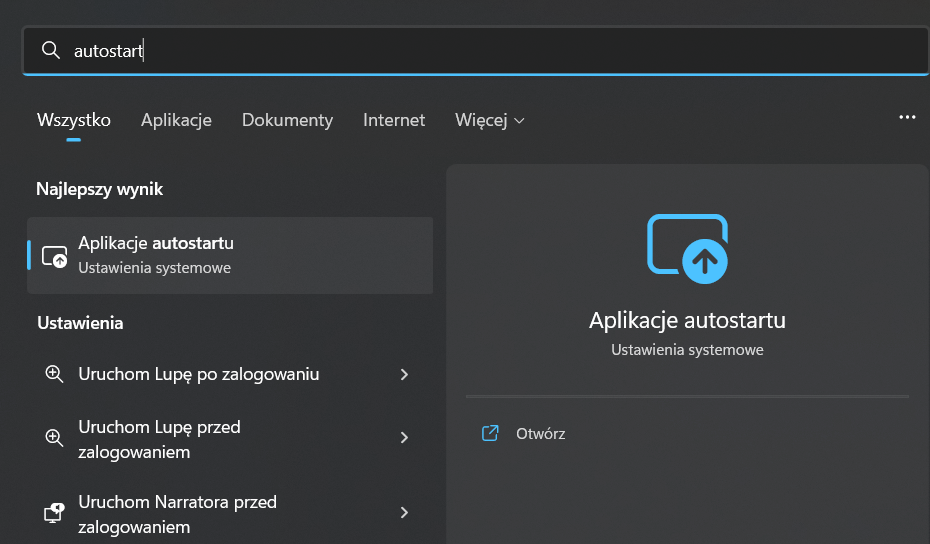
You can also launch the "Settings" program, go to the "Apps" tab, and at the very bottom find "Startup".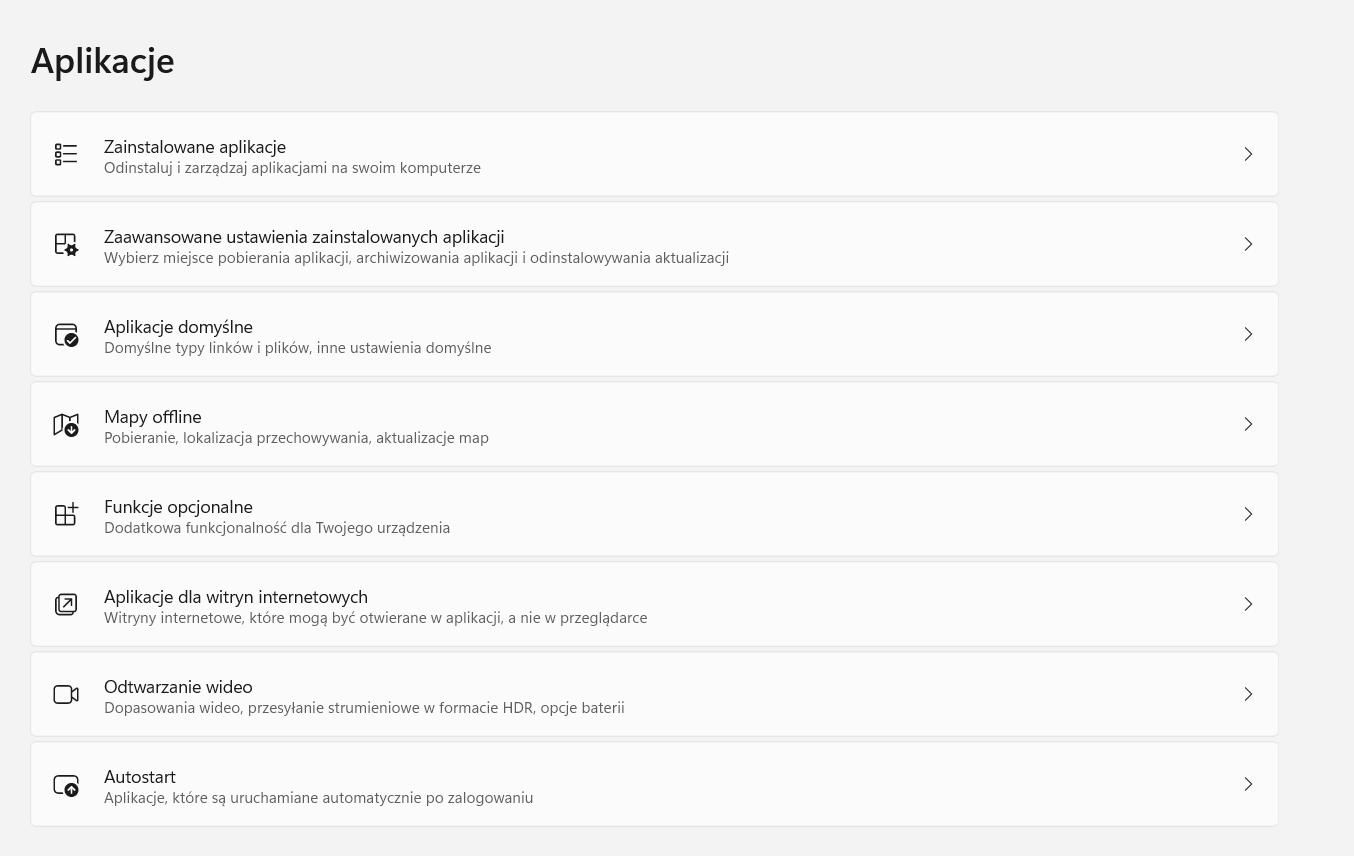
Another option is to enter via Task Manager. Press the keyboard combination Ctrl + Alt + Delete, click "Task Manager" at the bottom, and then go to the "Startup Apps" tab. NOTE – in this case, the list will look slightly different visually than the autostart apps in the first two versions. However, it will still serve the proper function, and you can disable startup by right-clicking on the program name..png)
The system will present a list of programs that you can sort by name, status (enabled/disabled), or impact on system startup, although the last feature does not work very precisely..png)
How to disable automatic application startup
To disable automatic application startup, just click the slider so that it changes from blue to gray. This way the program will no longer start with the system.
If you use the computer often or installed the system some time ago, you may be surprised at how extensive the autostart program list presented by the system is. Usually, alongside basic applications, there are "forgotten" programs that have not been run for a long time but still contribute to slowing down Windows loading.
There may also be components of larger packages that run in the background even after uninstallation. Finally, system tools appear in the autostart list (for example applications installed by the laptop manufacturer responsible for communication with specific components and their optimal use – this is how Realtek HD Audio Universal Service works, among others).
Windows 10 autostart – what can you remove without worrying about system condition?
Below we present several programs that are not especially needed in autostart, so removing them from the list may speed up Windows 10 startup.
WARNING: Removing an application from the autostart list is not the same as uninstalling the program from the computer – it only means that the program will no longer start automatically when the laptop or PC is turned on.
- CCCXProcess – this is one of the applications included in the Adobe Cloud suite, which remains in the system even after uninstallation. It should be removed from autostart.
- Intel Graphics Command Center Setup – responsible for managing the graphics card if your laptop has an integrated Intel GPU. You can disable its autostart.
- Microsoft Cortana – Microsoft’s voice assistant does not support the Polish language, so only a fraction of Polish users use it. Remove Cortana from autostart.
- Adobe Reader – a very useful program for handling PDF files, but it does not need to start with the system.
How to add a program to autostart in Windows?
Not all programs that can optionally start with the system are on this list. To add a program manually, find the program in the Start menu, right-click it, then click "Open file location.
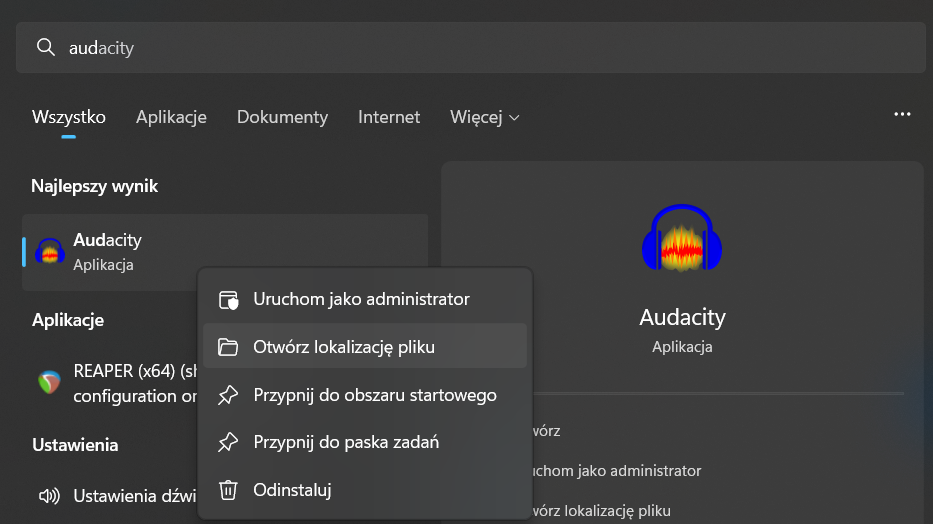
After doing this, press the Windows logo key and R. In the window that appears, paste the command shell:startup and click "OK.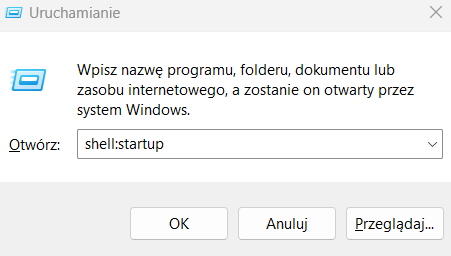
When the Startup folder opens, copy the shortcut to your application (found where the system directed you after clicking "Open file location") and paste it into the Startup folder. This way, the program is added to the Windows startup programs list and will run at the next computer boot.






