

Czym jest TPM 2.0 i dlaczego Windows 11 go wymaga?
- 18 Lu, 2026
- Lista blogów , Lista blogów
- 0 Komentarzy

Wraz z premierą systemu Windows 11 wielu użytkowników po raz pierwszy zetknęło się z pojęciem TPM 2.0. To skrót od Trusted Platform Module, czyli specjalnego układu kryptograficznego odpowiedzialnego za bezpieczeństwo sprzętowe komputera. Najprościej mówiąc, TPM to fizyczny lub wirtualny element płyty głównej, który generuje, przechowuje i chroni klucze szyfrowania oraz inne dane związane z bezpieczeństwem systemu.
TPM 2.0 – co to?
Moduł TPM można innymi słowami nazwać sprzętowym strażnikiem poufnych informacji. Działa niezależnie od systemu operacyjnego, dzięki czemu nawet jeśli Windows ulegnie awarii lub zostanie zainfekowany, klucze szyfrowania dysków i dane logowania pozostają bezpieczne. Standard TPM 2.0, wprowadzony w 2014 roku, zastąpił wcześniejszą wersję 1.2, oferując silniejsze algorytmy, lepszą integrację z nowoczesnym sprzętem oraz obsługę nowszych metod uwierzytelniania.
TPM 2.0 zyskał jednak szersze zastosowanie dopiero 2 lata po debiucie, wraz z procesorami Intel Skylake i AMD Zen – wtedy producenci płyt głównych zaczęli masowo integrować moduł w firmware. Prawdziwym przełomem stał się rok 2019, kiedy TPM 2.0 wszedł do mainstreamu konsumenckich komputerów i laptopów. Dzisiaj właściwie każdy nowy laptop czy stacjonarny PC jest domyślnie wyposażony w ten standard.
Dlaczego Windows 11 wymaga TPM 2.0?
Decyzja Microsoftu o uczynieniu TPM 2.0 jednym z wymagań sprzętowych systemu Windows 11 była początkowo kontrowersyjna. W praktyce ma ona jednak sens. Nowy system w dużym stopniu opiera się na funkcjach bezpieczeństwa wykorzystujących sprzętowe szyfrowanie, izolację procesów i ochronę danych biometrycznych. Bez TPM wiele z tych mechanizmów nie miałoby prawa działać.
Przykładowo funkcje takie jak BitLocker (szyfrowanie dysków), Windows Hello (logowanie twarzą lub odciskiem palca), czy Secure Boot korzystają z kluczy zapisanych właśnie w TPM. Dzięki temu system potrafi wykryć, czy ktoś próbował wprowadzić zmiany w firmware, czy też manipulował rozruchem komputera. W efekcie użytkownik zyskuje znacząco wyższy poziom ochrony przed atakami typu malware czy ransomware.
Co oznacza brak TPM w Windows 11?
Gdy podczas instalacji wyświetla się komunikat brak TPM Windows 11, oznacza to, że system nie wykrył wymaganego modułu. Opcje są dwie – komputer nie jest wyposażony w TPM lub moduł ten jest, ale został wyłączony w BIOS‑ie. Nie każdy komputer natywnie posiada aktywny TPM – dotyczy to szczególnie starszych modeli. W laptopach i komputerach biurowych układ ten często bywa wbudowany w procesor (np. w postaci fTPM w AMD lub PTT w procesorach Intela), lecz wymaga ręcznego włączenia.
Brak aktywnego modułu TPM nie zawsze oznacza, że nie można zainstalować Windows 11, ale utrudnia spełnienie oficjalnych wymagań bezpieczeństwa i może wykluczyć komputer z przyszłych aktualizacji. Microsoft zapowiedział, że system będzie rozwijał mechanizmy coraz silniej powiązane z TPM, więc jego brak to nie tylko nieznaczna niedogodność, lecz realne ograniczenie funkcjonalne.
Jak sprawdzić TPM w komputerze?
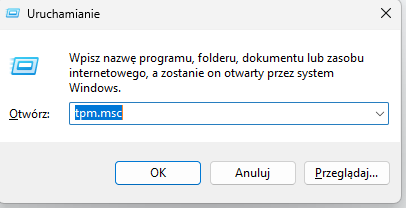
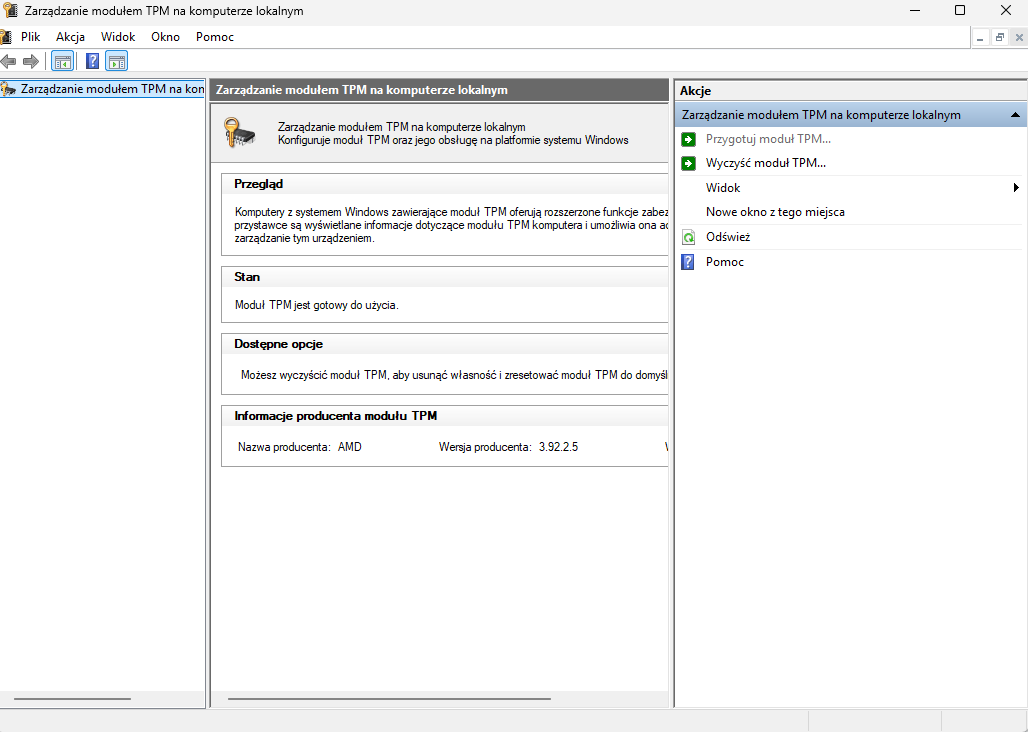
Najszybszy sposób to użycie skrótu klawiszowego Windows + R i wpisanie komendy tpm.msc. Jeśli w nowym oknie pojawi się informacja o module TPM 2.0 i jego stanie, oznacza to, że system go wykrywa.
Krok 1 – włączenie okna uruchamiania i wpisanie komendy
Krok 2 – widok w przypadku wykrycia przez system modułu TPM
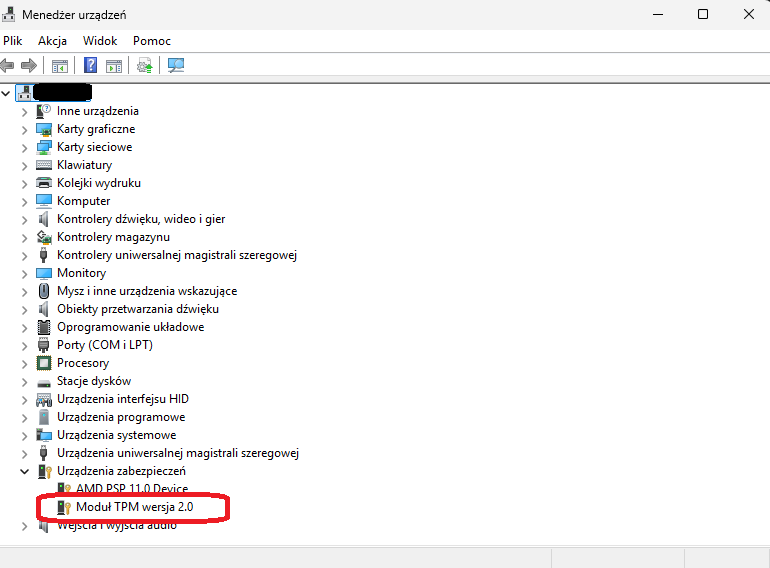
Alternatywnie można otworzyć Menedżera urządzeń i przejść do sekcji Urządzenia zabezpieczeń. Obecność wpisu „Moduł TPM wersja 2.0” potwierdza, że sprzęt jest zgodny. W przypadku, gdy komunikat informuje o braku modułu, warto zajrzeć do ustawień BIOS‑u, gdzie często znajduje się możliwość jego uaktywnienia.
Prawidłowe wykrycie modułu TPM w windowsowym Menedżerze urządzeń powinno wyglądać tak jak na poniższym zrzucie ekranu:
Włączenie TPM w BIOS – krok po kroku
Opcja odpowiedzialna za włączenie TPM w BIOS znajduje się najczęściej w sekcji Security lub Advanced. W zależności od producenta płyty głównej może występować pod różnymi nazwami: TPM Device, Security Device Support, Intel Platform Trust Technology (dla Intela) lub AMD fTPM Switch.
Po włączeniu modułu należy zapisać zmiany i ponownie uruchomić komputer. Od tego momentu Windows 11 powinien prawidłowo rozpoznawać TPM i pozwolić na instalację lub pełną aktywację funkcji bezpieczeństwa. Warto też zaktualizować BIOS, jeśli urządzenie nie wykrywa TPM mimo dostępności sprzętowej – nowsze wersje oprogramowania często poprawiają zgodność z tym standardem.
Windows 11 – TPM wymagania – co warto wiedzieć
Minimalne Windows 11 TPM wymagania przewidują obsługę wersji 2.0, ale istnieją pewne wyjątki. W środowiskach firmowych, gdzie stosuje się niestandardowe konfiguracje lub systemy wirtualne, administratorzy mogą korzystać z TPM wirtualnego, dostępnego za pomocą odpowiedniego oprogramowania. Microsoft wymaga jednak, by każda certyfikowana płyta główna miała możliwość uruchomienia odpowiedniego modułu, czy to sprzętowego, czy firmware’owego.
TPM 2.0 a wartość dla użytkownika
Warto również pamiętać, że TPM 2.0 to poza wymogiem instalacyjnym również zalecana funkcja do codziennego użycia. Chroni dane zapisane w systemie, zarządza certyfikatami i umożliwia szyfrowanie dysków bez dodatkowego oprogramowania. W przypadku laptopów z Windows 11 jest to standard niezależny od modelu – wyposażony w TPM sprzęt lepiej radzi sobie z ochroną danych w razie kradzieży lub zgubienia.
Coraz większa liczba zagrożeń cybernetycznych sprawia, że sprzętowe mechanizmy bezpieczeństwa stają się kluczowe. TPM 2.0 to fundament, który umożliwia rozwój nowych metod ochrony, takich jak szyfrowanie pełnodyskowe, uwierzytelnianie oparte o biometrię czy integracja z chmurą. Dzięki temu Windows może lepiej chronić zarówno dane lokalne, jak i konta Microsoft.
Dla użytkownika domowego oznacza to po prostu większy spokój. TPM działa w tle – nie wymaga żadnej konfiguracji po aktywacji, nie obciąża procesora i nie wpływa na wydajność. Raz włączony, staje się niewidoczny, ale to jeden z kluczowych elementów ochrony całego systemu.
Warto też pamiętać, że aktywny TPM 2.0 to nie tylko kwestia bezpieczeństwa, lecz także wygody. W połączeniu z kontem Microsoft moduł pozwala automatycznie odzyskiwać hasła do zaszyfrowanych dysków czy logować się bez konieczności ciągłego wpisywania danych uwierzytelniających. Dla użytkownika oznacza to mniej formalności przy zachowaniu wysokiego poziomu ochrony. To dowód na to, że nowoczesne funkcje bezpieczeństwa nie muszą utrudniać codziennej pracy – wręcz przeciwnie, często ją upraszczają.
Rozwój TPM w przyszłości
Posiadanie modułu TPM 2.0 staje się coraz istotniejsze nie tylko dla Windows 11, ale także dla przyszłych generacji systemów i oprogramowania zabezpieczającego. Coraz więcej aplikacji biznesowych, programów finansowych oraz narzędzi do ochrony tożsamości wykorzystuje TPM do szyfrowania danych i uwierzytelniania użytkownika. Dzięki temu komputer staje się bardziej odporny na ataki z zewnątrz – nawet jeśli ktoś uzyska fizyczny dostęp do dysku, nie zdoła odczytać zaszyfrowanych plików bez kluczy przechowywanych w module. To rozwiązanie, które realnie zwiększa bezpieczeństwo codziennej pracy i prywatności użytkownika.
Podsumowując, jeżeli przy instalacji widzisz komunikat o braku TPM, nie panikuj – często wystarczy szybkie włączenie TPM w BIOS, by spełnić wymagania Windows 11 TPM i w pełni wykorzystać możliwości systemu. W erze rosnących zagrożeń cyfrowych to niewielki wysiłek za spokój i bezpieczeństwo na co dzień.
Gdzie kupić Windows zgodny z Twoim komputerem
Jeśli Twój komputer spełnia wymagania systemowe i posiada aktywny moduł TPM 2.0, możesz bez problemu kupić klucz do Windows 11 w wersji cyfrowej w Key-Soft.pl. To najprostszy sposób, by mieć aktualny, bezpieczny system operacyjny z pełnym wsparciem najnowszych funkcji.
Natomiast jeśli posiadasz starszy komputer pozbawiony modułu TPM lub obsługuje on jedynie starszy standard, w Key-Soft znajdziesz także wcześniejsze wersje systemu – Windows 10 lub Windows 8.1, które nie wymagają obecności TPM 2.0. Dzięki temu możesz dobrać oprogramowanie zgodne z możliwościami swojego sprzętu i nadal korzystać z legalnego, stabilnego systemu Windows.







Dodaj komentarz Anuluj odpowiedź