

How do I create a Windows USB flash drive?
- April 28, 2026
- List of blogs , List of blogs , List of blogs , List of blogs , List of blogs
- 0 Comments
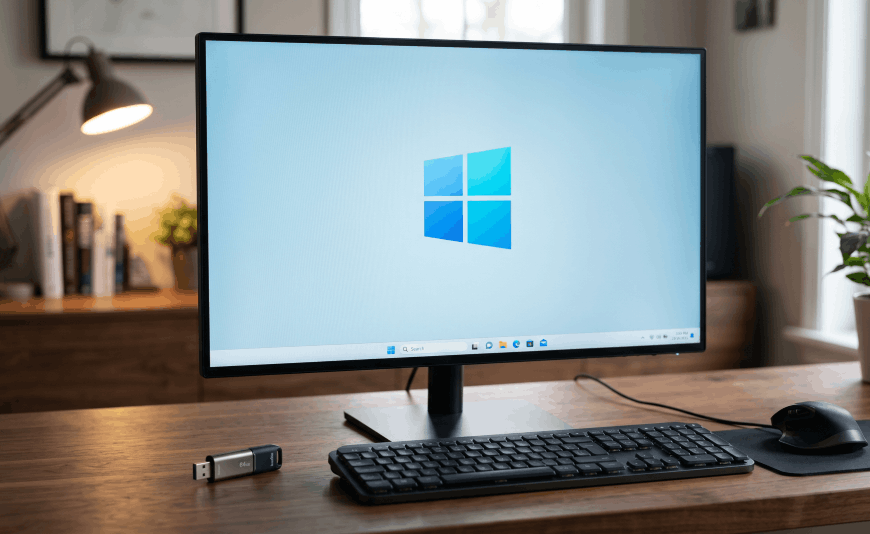
Installing an operating system from a USB drive has become the norm. It’s a convenient, fast, and reliable solution, especially if your computer doesn’t have a DVD drive. A Windows USB drive lets you install the operating system on virtually any device—from laptops to desktop computers.
What do you need to create a Windows USB drive?
Before you begin, gather a few essential items. Without them, you won’t be able to create the installation media.
- A USB flash drive with a minimum capacity of 8 GB,
- A stable internet connection,
- A computer running Windows,
- The official Microsoft tool—Media Creation Tool.
Make sure the USB drive is empty. The process of formatting the drive often deletes all data stored on it.
How do I create a USB flash drive in Windows?
The simplest and safest way is to use the tool provided by Microsoft. This ensures that your system files are up to date and free of errors.
First, you need to download the Media Creation Tool from the Microsoft website. Once the program has launched, accept the license terms and select the option “Create installation media for another PC.”
Next step:
- select the system language,
- specify the Windows edition,
- Set the architecture (usually 64-bit).
Next, select the "USB flash drive" option. The program will automatically detect the connected USB drive and begin downloading the system files. The entire process may take several dozen minutes, depending on your internet speed.
Once the process is complete, the Windows USB drive is ready to use.
Installing Windows from a USB drive—how do I run the installer?
Preparing the USB drive is just the first step. To begin the installation on the device, you need to start up your computer properly.
After connecting the USB drive:
- Restart your computer,
- Enter the BIOS or UEFI (usually by pressing F2, DEL, or ESC),
- Set the system to boot from USB first.
After saving the changes, the computer will restart and automatically begin the installation Windows from the USB drive.
Common problems when creating a Windows USB flash drive
Although the process is simple, difficulties may arise. It’s helpful to be familiar with the most common issues and how to resolve them.
The problem is often caused by an unsuitable flash drive—slow storage can slow down the process or cause errors. It’s a good idea to use USB 3.0 models.
Sometimes the computer fails to detect the storage device during startup. In this case, check the BIOS settings or use the boot menu.
Some errors occur when downloading files—in that case, it’s best to restart the tool and make sure your internet connection is stable.
Why should you create a Windows installation USB drive?
Having your own installation media gives you a great deal of independence. If your system crashes, you can quickly get your computer up and running again without having to visit a service center.
A Windows USB flash drive is also useful when replacing a hard drive or upgrading your computer.
This is a practical solution that’s always good to have on hand—especially in a work environment where time and equipment uptime are critical.
The process of creating an installation medium isn’t complicated, and the necessary preparations take relatively little time. By knowing how to create a Windows USB drive, you can install the operating system yourself and avoid unnecessary complications. This is one of the basic steps that significantly increases your control over your own hardware and software.







Add a comment Cancel reply