

Windows 11 25H2 – What's New and Is It Worth Updating?
- June 18, 2026
- List of blogs
- 0 Comments
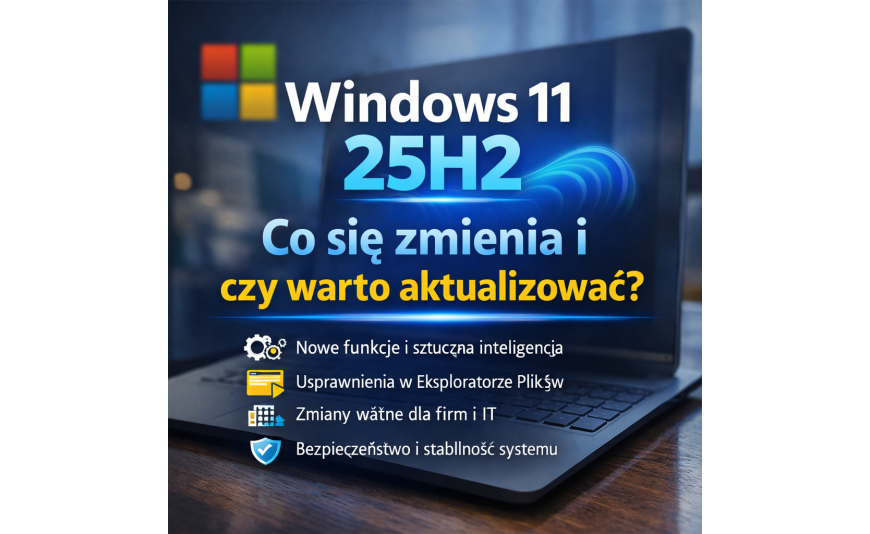
Why 25H2? What's changing, and is it worth updating?
25H2 is interesting for another reason: unlike 24H2 (which was a full system “replacement”), this time Microsoft has returned to the model of a “minor” update, which in many scenarios installs faster and with less risk of downtime.
What does the number 25H2 mean, and what does the distribution look like?
In practice, it’s an abbreviation for “second half of the year” (Half 2). The number itself therefore refers more to the release cycle than to the scale of the changes. That’s why two updates with similar designations may differ in “significance”—depending on whether they involve a complete replacement of system files or merely the activation of features already present in the code.
Update in the form of an update package
The most important information for those who already have version 24H2: 25H2 is delivered as an "enablement package." In practice, this means a shorter installation process, often requiring only one restart, and a lighter update process.
What does this mean for the average user?
Less downtime: Updates are often noticeably faster than a full system "swap."
Fewer surprises: when two versions share a common maintenance branch, some of the changes end up on your computer anyway as part of the monthly updates.
An easier way to revert: In many cases, it’s also easier to uninstall the feature update if something goes wrong (though it’s still a good idea to back up your data).
Good to know
The "inclusion package" model does not mean "no changes." Above all, it means a different delivery method and that new features can "mature" in the background as part of ongoing updates, with 25H2 simply activating them.
Key changes in 25H2
1) AI actions in File Explorer
One of the most noticeable new features is the AI actions available in the file context menu. Depending on the file type, you can now quickly perform actions that previously required opening an application or taking additional steps (such as image processing or document summarization).
What does this mean in practice?
you can complete repetitive tasks on files more quickly,
Some features depend on your device's configuration and the services available, so you'll see more options on some devices and fewer on others.
2) Features for devices with Copilot+ PC
If you have a computer that meets the Copilot+ PC requirements, version 25H2 introduces features such as Click to Do and the "agent" in Settings. This is an area that Microsoft is rolling out in phases—some features are first made available on select hardware configurations, and availability is expanded later.
3) Easier organization of applications within the company
In enterprise and educational environments, it is important to have a policy that allows selected pre-installed apps to be removed from the Store—via Group Policy or MDM (e.g., Intune). For IT departments, this represents a real time-saver when preparing device images and user profiles.
4) Wi-Fi 7 in corporate access points
If you’re using modern infrastructure, the 25H2 supports Wi-Fi 7 for enterprise access points. This can be important in offices with a high density of devices, where bandwidth and stability are key.
5) Changes "under the hood" and removed components
Microsoft's documentation also mentions the removal of older components (including PowerShell 2.0 and WMIC). This isn't news "for everyone," but it may be important for administrators and users who run older scripts.
Dates and channels: when the new update was released for 25H2
Microsoft announced the availability of the "2025 Update" in late September 2025, and the rollout took place gradually (depending on hardware and driver compatibility). For managed environments, specific release dates within the monthly update cycle are also important.
Safeguard holds and why you sometimes "don't see" updates
If the update service does not display an installation prompt, this is often not an error, but rather an intentional hold (known as a "safeguard hold") for specific configurations where an issue has been detected. In such situations, the best approach is to be patient and monitor the information in the "release health" dashboard for version 25H2.
Is it worth installing 25H2 right away?
The answer depends on how you use your computer. Below is a "common-sense" approach that works well both at home and in small businesses.
When to update as soon as possible
1) Are you interested in new features in Explorer and AI integrations?
If you work with files and frequently move photos and documents around, and want to reduce the number of clicks, AI actions can be a real time-saver.
2) You have new hardware and regularly install updates
On fresh installations with up-to-date drivers, the risk of conflicts is usually lower. In addition, the “upgrade package” usually does the trick: the installation is simply less intrusive than a full version replacement.
3) You want to standardize the environment at your company
If you’re already managing updates centrally, a quick transition to the new version can simplify policies, reporting, and user support (one set of rules, one set of documentation, one test matrix).
When is it better to wait?
1) You have a computer that's barely working or essential peripheral equipment
Unusual drivers (for printers, scanners, and audio devices) can cause unexpected issues even with minor updates. If such hardware is essential for your work, it’s better to wait a few weeks and keep an eye on known issues and their solutions.
2) You are using outdated administrative tools or scripts
Removing older components may require adjusting procedures or migrating to newer equivalents. This is especially important in organizations where automation relies on solutions developed “years ago.”
Before updating:
Data copy
Back up your most important data: documents, photos, browser profiles, and work files. In practice, this is the only thing that will really “save the day” if the update goes wrong.
Latest drivers and BIOS/UEFI
If your computer manufacturer offers a newer BIOS/UEFI or chipset drivers, it’s a good idea to install them before performing a major update. This reduces the risk of conflicts when you first boot up after installation.
Disk Organization
Leave a reasonable amount of free space. Even if the installation is smaller, the system needs space for temporary files and a restore point.
Plan B
Got an important project due tomorrow? Then save the updates for after you finish the project, not an hour before the deadline. It sounds obvious, but in practice, it saves you the most stress.
Frequently Asked Questions
Is 25H2 a "full" system reinstallation?
For devices on 24H2 – no, it’s usually a shorter process thanks to the activation package.
Will there be any issues after the update?
They might—as is often the case after any major update. That’s why Microsoft maintains a public dashboard listing known and resolved issues for this version.
Will AI features be available to everyone?
Not always. Some options are hardware-dependent (e.g., the Copilot+ PC category) and are being rolled out in phases.
If you have up-to-date hardware, value improvements in file handling, and regularly keep your system updated, 25H2 is a safe step forward—primarily because upgrading from 24H2 is often quick and less disruptive. However, if your computer is a tool for “making money right here and now,” and every hour of downtime costs you, it’s wise to wait for further fixes and make sure your drivers aren’t on the list of exceptions.
Finally, if you plan to add additional tools to your license or installation after the update: choose a product key for a hassle-free activation, get it at a low price, and if you need an Office suite—click "Buy" and select Windows.







Add a comment Cancel reply