

Autostart Windows – jak dodać i usunąć program?
- 14 Paź, 2022
- Lista blogów
- 0 Komentarzy

Autostart to inaczej programy uruchamiane przy starcie systemu. Ich dobór ma spore znaczenie, wpływając na szybkość uruchamiania się Windowsa. Zasada jest tu bardzo prosta – im więcej programów w autostarcie Windows 10, tym więcej obliczeń musi wykonać komputer, co wydłuża czas wczytywania się OS-a od naciśnięcia przycisku „power” na komputerze do pełnej użyteczności.
Ma to również znaczenie czysto użytkowe – jeżeli użytkownik korzysta z danego programu przy niemal każdym kontakcie z komputerem, być może aplikacja powinna uruchamiać się w autostarcie, by oszczędzić użytkownikowi konieczności włączania ręcznego. Część programów od razu sprawdzi dostępność aktualizacji i wykona update samodzielnie (na przykład Steam czy aplikacja Epic Store), nie angażując w to użytkownika.
Jak wyłączyć programy przy starcie systemu windows? Odpowiedź na to pytanie znajdziesz w tym artykule.
Pamiętaj, że legalny system Windows z pełnym wsparciem producenta i dostępem do późniejszych aktualizacji to podstawa stabilnej pracy na komputerze. Windows 10, a także inne wersje Microsoft Windows możesz kupić w sprawdzonym sklepie Key-Soft.pl.
Jak wyłączyć aplikacje przy starcie windows 10 – uruchomienie listy autostartu
W systemie operacyjnym windows 10 programy startowe znajdziesz, wpisując w pasku wyszukiwania w menu Start „autostart” – pełna nazwa programu to „Aplikacje autostartu”.
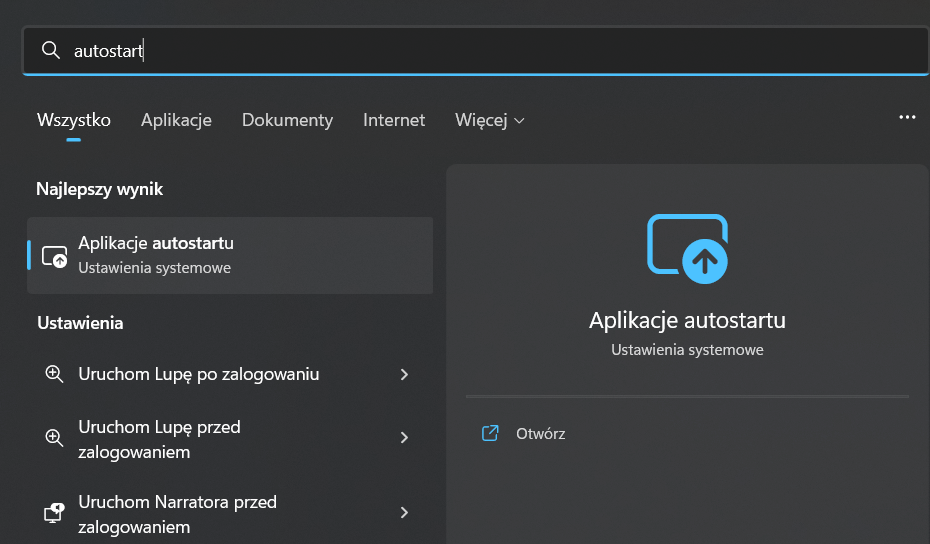
Możesz również uruchomić program „Ustawienia”, przejść do zakładki „Aplikacje” i na samym dole „Autostart”.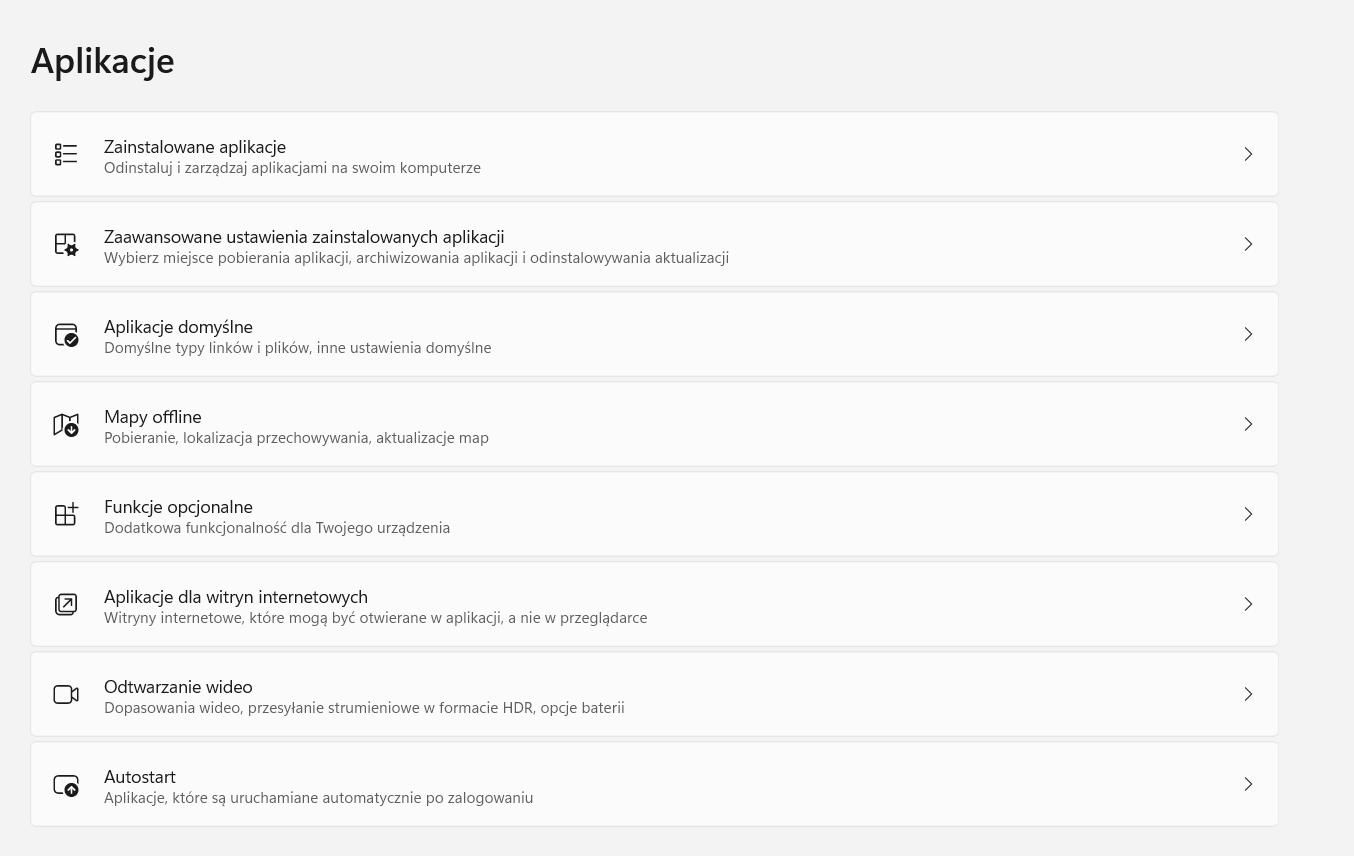
Jeszcze inną opcją jest wejście przez Menedżer Zadań. Wciśnij na klawiaturze kombinację klawiszy Ctrl + Alt + Delete, na dole kliknij „Menedżer Zadań”, a następnie przejdź do zakładki „Aplikacje autostartu”. UWAGA – w tym przypadku lista będzie wizualnie prezentować się nieco inaczej niż aplikacje autostartu w dwóch pierwszych wersjach. Dalej pełnić będzie jednak właściwą funkcję, a wyłączyć uruchamianie możesz, klikając prawym przyciskiem myszy na nazwę programu..png)
System zaprezentuje listę programów, którą możesz posortować według nazwy, stanu (włączona/wyłączona) lub wpływu na uruchomienie systemu, choć ta ostatnia funkcja nie działa zbyt precyzyjnie..png)
Jak wyłączyć automatyczne uruchamianie aplikacji
Aby wyłączyć automatyczne włączanie aplikacji, wystarczy kliknąć na suwak, by z niebieskiego koloru stał się szary. W ten sposób dany program nie będzie już uruchamiany wraz ze startem systemu.
Jeżeli często korzystasz z komputera lub instalowałeś system jakiś czas temu, możesz zdziwić się, jak bardzo zaprezentowana przez system lista programów autostartu jest rozbudowana. Zazwyczaj obok podstawowych aplikacji znajdują się tam „zapomniane” programy, które dawno nie były uruchamiane, jednak wciąż dokładają swoją cegiełkę do spowalniania ładowania się Windowsa.
Mogą być tam również elementy składowe większych pakietów, które nawet po odinstalowaniu działają w tle. Wreszcie są na liście autostartu narzędzia systemowe (na przykład aplikacje wgrane przez producenta laptopa, które odpowiadają za komunikację z określonymi podzespołami i ich optymalne wykorzystanie – tak działa między innymi Realtek HD Audio Universal Service).
Windows 10 autostart – co usunąć bez obaw o kondycję systemu?
Poniżej prezentujemy kilka programów, które nie są specjalnie potrzebne w autostarcie, przez co ich usunięcie z listy może mieć wpływ na przyspieszenie uruchamiania systemu Windows 10.
UWAGA: Usunięcie aplikacji z listy autostartu nie jest równoznaczne z odinstalowaniem programu z komputera – oznacza jedynie, że program przestanie uruchamiać się sam przy włączaniu laptopa czy peceta.
- CCCXProcess – to jedna z aplikacji wchodzących do zestawu Adobe Cloud, która mimo deinstalacji wciąż znajduje się w systemie. Do usunięcia z autostartu.
- Intel Graphics Command Center Setup – odpowiada za zarządzanie kartą graficzną, jeśli Twój laptop ma zintegrowane GPU od Intela. Możesz wyłączyć autouruchamianie.
- Microsoft Cortana – asystent głosowy Microsoftu nie obsługuje języka polskiego, dlatego korzysta z niego zaledwie promil polskich użytkowników. Usuń Cortanę z autostartu.
- Adobe Reader – program niezwykle przydatny w obsłudze plików PDF, jednak nie musi on uruchamiać się razem z systemem.
Jak dodać program do autostartu w Windows?
Nie wszystkie programy, które mogą być opcjonalnie uruchamiane wraz ze startem systemu, znajdują się na tej liście. Aby dodać program ręcznie, znajdź program w menu Start, kliknij na niego prawym przyciskiem myszy, a następnie kliknij na „Otwórz lokalizację pliku”.
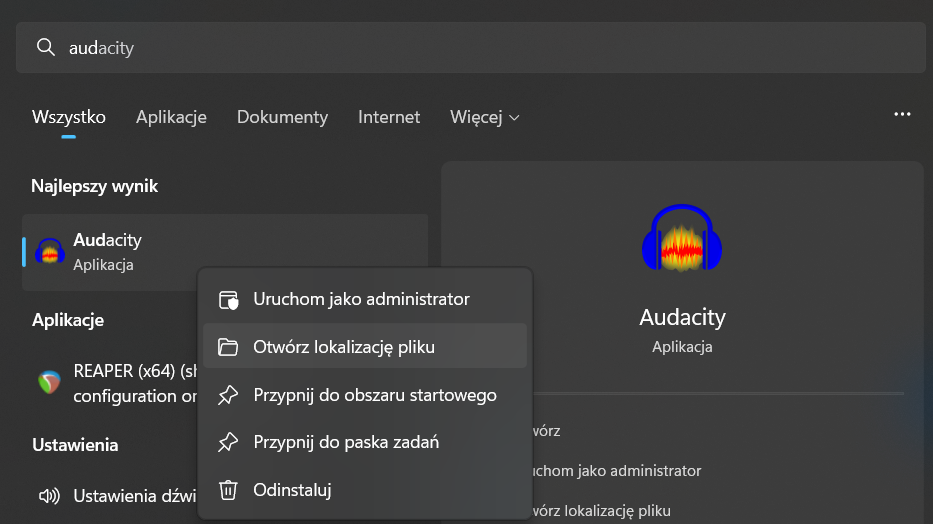
Po wykonaniu tej czynności naciśnij klawisz systemowy z logo Windows oraz R. W okienku, które się pojawi wklej komendę shell:startup i kliknij „ok”.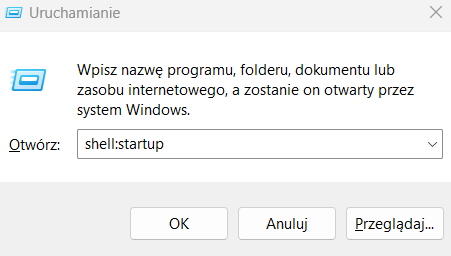
Gdy otworzy się folder Uruchamianie, skopiuj skrót do Twojej aplikacji (znajdziesz go tam, gdzie system pokierował Cię po kliknięciu „Otwórz lokalizację pliku”) i wklej go w folderze Uruchamianie. W ten sposób program został dodany do listy programów startowych Windows i uruchomi się przy kolejnym włączeniu komputera.







Dodaj komentarz Anuluj odpowiedź