

The Most Common Windows Activation Errors and How to Fix Them
- Jan. 15, 2026
- List of blogs , List of blogs
- 0 Comments
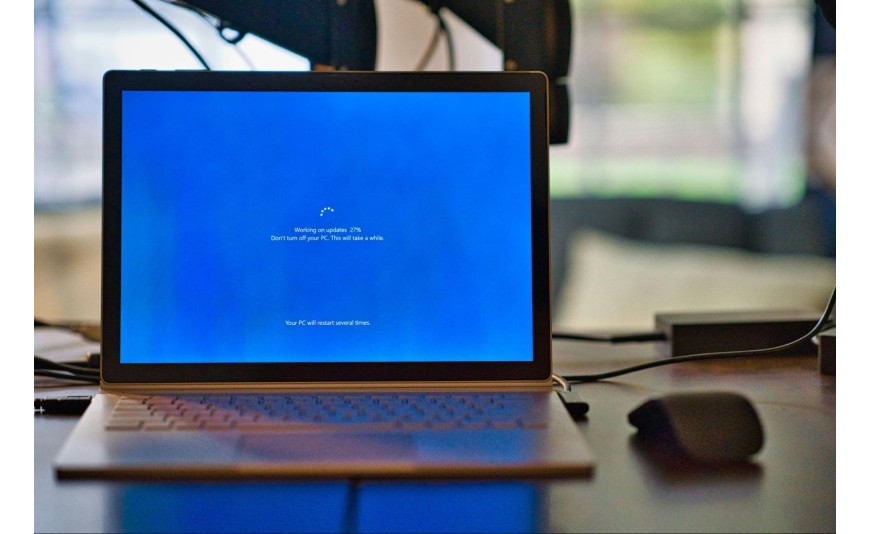
The installation went smoothly, your computer is up and running, and you’re eagerly waiting for all features to become fully available. You enter the 25-character product key, click “Activate,” and suddenly a message appears: Windows cannot be activated. Instead of enjoying your new system, you’re staring at a mysterious string of numbers and letters that means nothing to you. If this situation sounds familiar, you’ve come to the right place. In this guide, we explain where activation problems come from and how to interpret Windows activation error codes , and how to effectively restore full system functionality.
Why does the Windows activation error occur?
There are more reasons for activation failure than you might think. Sometimes the culprit is an interruption in the internet connection during license verification on Microsoft servers. Other times, the problem lies in the product key itself, which may have been entered with a typo or obtained from an unauthorized source. The system may also refuse to cooperate after significant hardware changes, such as replacing the motherboard or hard drive. It’s worth remembering that a Windows activation error doesn’t always mean your license is invalid—often, a few simple steps are all it takes to get everything back to normal.
The most common Windows activation error codes
Each message regarding a failed activation includes a specific code that indicates the source of the problem. Understanding these codes greatly simplifies troubleshooting and allows you to implement the appropriate corrective actions more quickly. Below is a list of the most common codes along with their meanings.
Error code 0xC004F074 – No connection to the activation server
This Windows activation error code appears when your computer cannot connect to Microsoft servers. There are various possible causes: temporary network issues, a firewall block, or incorrect proxy server settings. First, check your internet connection and make sure your firewall isn’t blocking the activation process. If you’re using a corporate network, contact your IT administrator.
Error code 0xC004C008 – Product key already in use
This message indicates that the key you entered has already been activated on another device. For retail licenses, you can transfer the activation to a new computer after deactivating the previous one. OEM licenses, however, are permanently tied to a specific motherboard, so they cannot be transferred. If you purchased a new key and see this error, contact the seller to clarify the situation.
Error code 0x803F7001 – invalid license
This message means that the system does not recognize the key you entered as valid for the installed edition of Windows. This usually happens when you try to activate the Pro version with a key intended for the Home edition, or vice versa. Before purchasing, always verify that the key matches the installed version of the operating system.
Error code 0xC004F034 – operating system version mismatch
Like the previous one, this Windows activation error is caused by a key that does not match the system edition. It can also occur when attempting to activate a volume version with a retail key. Make sure you have the correct license type for your installation.
Fixing Windows Activation – Proven Methods
Once you've identified the source of the problem, it's time to take action. Below are some effective ways to fix Windows activationthat you can perform yourself without advanced technical knowledge.
Method 1: Using the troubleshooting tool
Windows 10 and Windows 11 include a built-in diagnostic tool that automatically detects and fixes common activation issues. To use it:
Open "Settings" (Win + I);
Go to the "System" section, then "Activation";
Click "Troubleshoot" and follow the on-screen instructions.
The tool will scan your system, check the connection to Microsoft's servers, and attempt to repair the issue automatically. In many cases, this simple step is enough to restore activation.
Method 2: Re-enter the product key
Sometimes re-entering the activation code solves the problem. Mistakes when entering the code for the first time happen more often than you might think—it’s easy to confuse the number “0” with the letter “O” or “1” with “I.” Go to Settings, select Activation, and click “Change Product Key.” Enter the code again, paying close attention to each character.
Method 3: Activation by phone
If online automatic activation fails, you can use phone activation. Despite the name, this does not require speaking with a representative—the entire process is automated. Open a command prompt as an administrator and type the command “slui 4”. The system will display a phone number and an installation ID. After connecting to the Microsoft automated line, enter the provided code and you will receive an activation key.
Method 4: Resetting the license status
In some cases, resetting the components responsible for activation can help. Open a command prompt with administrator privileges and enter the following commands one by one:
slmgr.vbs /upk (deletes the current key);
slmgr.vbs /cpky (deletes a registry key);
slmgr.vbs /ipk XXXXX-XXXXX-XXXXX-XXXXX-XXXXX (installs a new key);
slmgr.vbs /ato (starts online activation).
After completing these steps, restart your computer and check your activation status.
Changing hardware and activating Windows
One of the most common reasons for losing your Windows activation is upgrading your computer. Hardware changes and Windows activation is a topic that raises many questions, especially among those planning to replace components. The Microsoft system generates a unique hardware ID based on the computer’s components, and the motherboard plays a key role in this process. Replacing the graphics card or adding RAM usually does not affect activation, but replacing the motherboard almost always results in its loss.
What should I do after replacing the motherboard?
If you have a retail license linked to a Microsoft account, you can reactivate the system on new hardware. Before replacing components, it’s a good idea to link your license to your Microsoft account in System Settings. That way, after replacing the motherboard, all you need to do is sign in to the same account and run the activation troubleshooter—the system will automatically recognize your license.
OEM License Restrictions
OEM licenses, which are often offered at lower prices, have a significant limitation: they are permanently tied to the first device on which they were activated. If you replace the motherboard, the license will stop working, and you’ll need to purchase a new key. Therefore, when choosing a license, it’s worth considering whether you plan to upgrade your computer in the future.
How can I avoid activation issues?
Prevention is easier than fixing Windows activation after the fact. A few simple rules will help you avoid the frustration of error messages:
Purchase keys only from authorized sources that guarantee the product's authenticity;
Before purchasing, check that the key is compatible with your version of the system (Home, Pro, Enterprise);
Link your digital license to your Microsoft account immediately after activation;
Keep your proof of purchase and product key in a safe place;
Before replacing your equipment, verify the type of license you have.
In the store Key-soft.pl you'll find affordable Windows keys in various versions—both with online activation and device-specific keys. Every product comes from an authorized distributor, and a step-by-step activation guide is included with your order.
FAQ: Activating Windows, checking license status, and transferring the system to a new computer
Can I use Windows without activating it?
Yes, the system works even without activation, but with certain limitations. You cannot customize the desktop, and a watermark reminding you to activate the system appears in the corner of the screen. In addition, some security features may be limited.
How can I check if my Windows is activated?
Open "Settings" (Win+I), go to the "System" section, and then select "Activation." There, you'll see information about your activation status and the type of Windows license you have.
Does replacing the SSD affect Windows activation?
Replacing a hard drive or SSD usually does not result in the loss of activation, provided that the other components—especially the motherboard—remain unchanged. Once the system has been transferred to the new drive, the activation should remain valid.
Can I transfer my Windows license to another computer?
It depends on the type of license. Retail licenses can be transferred between devices after being deactivated on the previous device. OEM licenses are tied to a specific computer and are generally not transferable.







Add a comment Cancel reply