

Guide: How to create a disk partition in Windows 11?
- February 24, 2023
- List of blogs
- 0 Comments
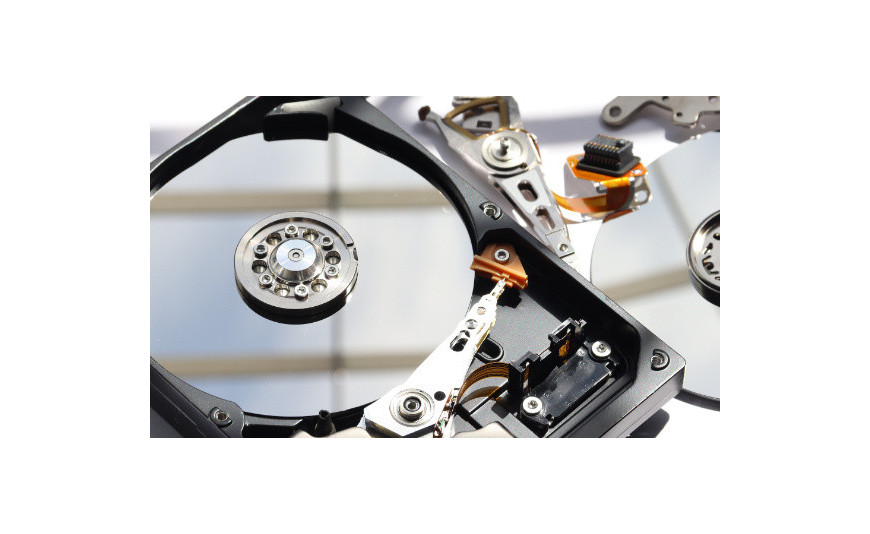
Are you having trouble finding the files you need on your computer's hard drive? Or is your device running slower and slower? If you have a Windows 11 system, partitioning your hard drive is the perfect solution for you. This way, you’ll create additional drives that will help you organize your files. This will improve your computer’s performance. Learn how to partition a drive in Windows 11.
Partitioning a hard drive in Windows 11 – how does it work?
Partitions are also known as volumes. They are virtual sections into which a hard drive can be divided. As a result, instead of just a single C: drive, your computer may have other sections, such as D: or even E:. However, it’s important to remember that creating partitions does not increase storage capacity—the entire drive still has the same capacity.
After partitioning your hard drive, additional drives will appear in the "This PC" folder. They are easy to find. You can move various programs, documents, and other files to them.
How do I partition a drive in Windows 11?
Wondering how to create partitions? The whole process is pretty simple. You don't need to install anything. All you need is a little time.
- Hover over the Windows icon and right-click.
- Select "Disk Management."
- Right-click the drive from which the partition will be created.
- When the menu appears, locate the "Lower volume" option and click it.
- Enter the size of the new partition—remember to specify the size in MB.
- Click the "Next" button.
- Find the unallocated disk space in the list of volumes.
- Click the box labeled "Unallocated" and click the "New Simple Volume" button.
- In the new window, click the "Next" button.
- Next to the "Simple volume size in MB" field, enter the desired capacity for the new partition. Click "Next."
- In the first step, assign a drive letter to the disk you are creating.
- Under "Format this volume with the following settings," change the file system to "NTFS." Click "Next."
- A summary with basic information about the partition will appear on the desktop. Click "Finish" to complete the volume creation.
Once you've followed the steps in the guide on how to create partitions, you'll be able to start using the drive to store data.
How do I merge partitions in Windows 11?
Have you ever created too many new partitions? Are you wondering how to make disk management easier? Windows 11? You can combine them into a single volume. It’s pretty simple!
- Hover your mouse over the Windows icon, then right-click.
- Click the "Disk Management" button.
- Select a partition and right-click.
- Click the "Delete Volume" button.
- Allocate the recovered disk space to the selected partition.
- Hover over the volume you want to expand and right-click.
- Click "Expand Volume."
- Enter the desired size for the new partition, then click "Next" and "Finish."
This way, you’ll get rid of several small drives and end up with one large one. Remember, however, to first delete all the files stored on each drive before removing it. If you don’t do this, you’ll lose all your data once the partition is deleted.
Windows 11 Home OEM (32-bit and 64-bit ) – a modern operating system for home use
Why should you create a disk partition?
Creating a partition on your hard drive is a great idea if you want to better protect your files. If the operating system unexpectedly fails, an IT specialist will format only the volume where Windows is installed. This will remove all data from it and restore the device to full working order. However, the files stored on the other drives will remain. Therefore, you will be able to access them again. This is especially important if, for example, you usually store valuable photos on your computer.
In addition, creating new partitions makes it easier to organize the files stored on your computer. These additional drives act as “containers.” You can store the operating system on one, programs on another, and valuable data on a third. This will allow you to quickly and easily find the files you need.
Creating a partition on a hard drive isn't difficult. See for yourself!







Add a comment Cancel reply